How to Back Up Video Footage: A Pro Workflow Guide
Data loss is one of the most painful and costly mistakes in video production. In our experience working with film crews, broadcasters, and independent creators, drive failures and corrupted file transfers never give advance warning. A single lost memory card or dropped hard drive can destroy days of work and ruin client trust.
Protecting your footage requires more than dragging files to a spare hard drive when you get home. It takes a clear routine built on fast hardware, verified file transfers, and structured storage tiers.
This guide breaks down practical backup workflows for video professionals and content creators. You will learn how to structure your storage, protect media from set to archive, and avoid common data management traps.
The 3-2-1 Backup Strategy for Video Production
The foundation of secure data management in video production is the 3-2-1 backup rule. Major studios and Netflix production guidelines require multiple copies of camera-original media before anyone formats a card.
An effective 3-2-1 workflow includes:
- 3 Total Copies: Keep your primary working media and at least two separate backup copies of all raw camera files, audio tracks, and project files.
- 2 Different Media Types: Store copies on two different storage technologies, such as an NVMe SSD shuttle drive and a mechanical HDD array.
- 1 Offsite Copy: Keep at least one full backup set in a different location, like secure cloud storage or a separate office.
Verify Transfers with Checksums
Simply copying files through your computer’s standard file browser leaves room for hidden file corruption. A transfer can report as complete even if dropped bits or broken frames occurred during the transfer.
Always use dedicated offload software like ShotPut Pro, Silverstack, or DaVinci Resolve’s Clone Tool. These tools use checksum algorithms to verify that every byte on your memory cards matches the target backup drive. Only clear and format original camera cards after checksum verification succeeds on all backup drives.
For advice on choosing fast media before your shoot, read our guide on how to choose a memory card for video.
Why RAID Is Not a Backup
A common trap in video editing is thinking that a RAID array counts as a full backup system. Redundant RAID systems are essential for daily editing speed and system uptime, but RAID is not a backup.
RAID (Redundant Array of Independent Disks) protects your active system against hardware drive failures. If a single drive dies in a RAID 5 array, your system keeps working and rebuilds the missing data when you insert a new drive. However, RAID does not protect against:
- Accidental Deletion: Deleting a project file on a RAID drive instantly deletes it across all mirrored disks.
- Ransomware and Malware: Malware that encrypts your local storage will encrypt the whole RAID array at once.
- File System Corruption: Software crashes or power outages during saving can corrupt your file directory across all drives.
- Physical Disasters: Fire, water damage, or theft will destroy the entire RAID enclosure simultaneously.
Use RAID arrays for high transfer speeds and local drive protection during active editing. Maintain separate backup systems to recover from human error, software crashes, or physical loss.
Step-by-Step Backup Workflow: From Set to Post
A reliable backup workflow begins as soon as you pull cards from your camera or external video recorder. Splitting your workflow into three clear phases keeps post-production organized and protects your assets.
Phase 1: On-Set Ingest and Field Offloading
When shooting on location, your primary goal is copying media to rugged shuttle drives quickly while keeping secondary copies separated.
Use fast portable SSDs with high sustained write speeds. Durable enclosures protect your footage from drops, dust, and moisture during transport in your video equipment bag.
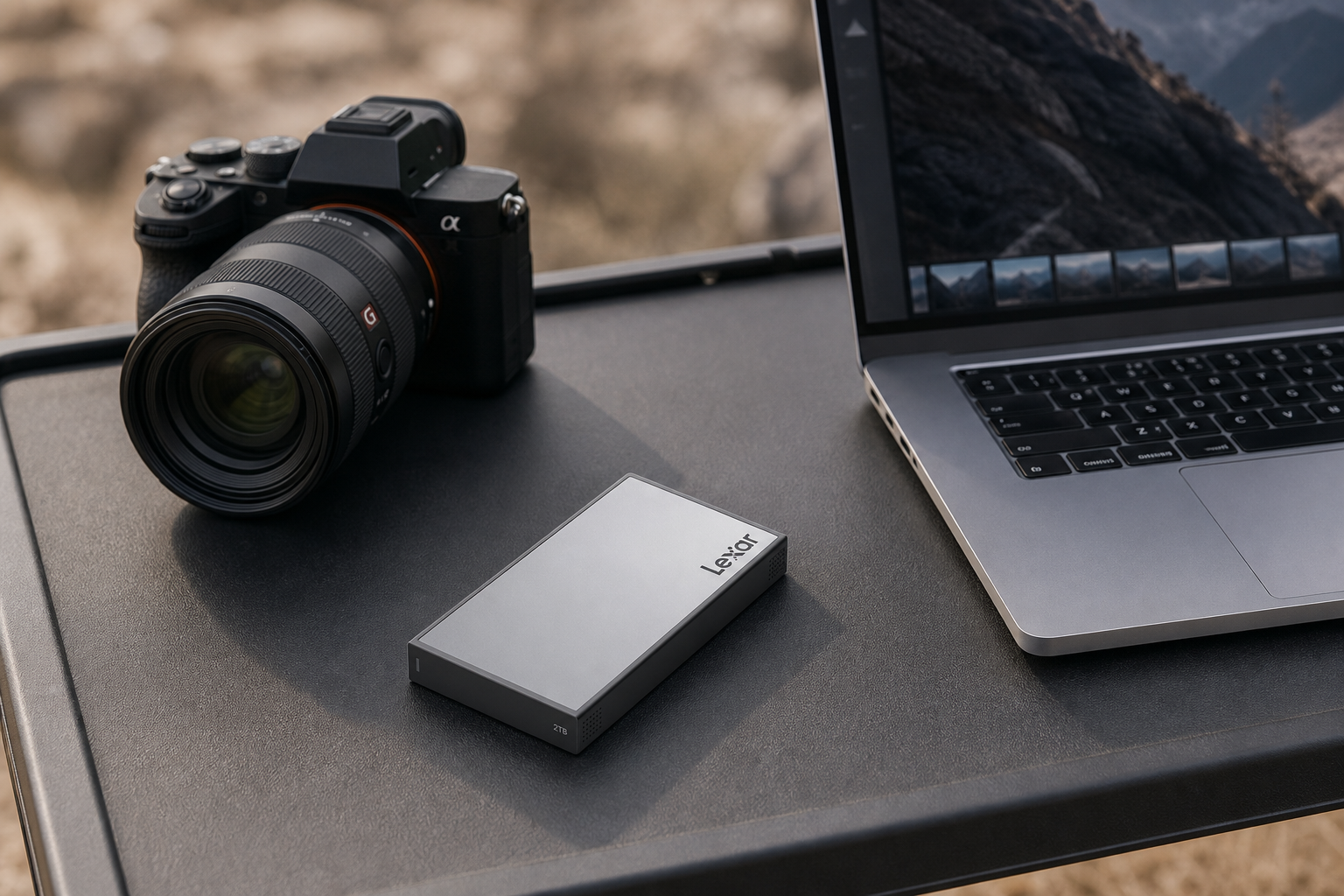
Pair high-speed media with dedicated card readers to maximize transfer throughput on location.
-
 Card readers, External drives
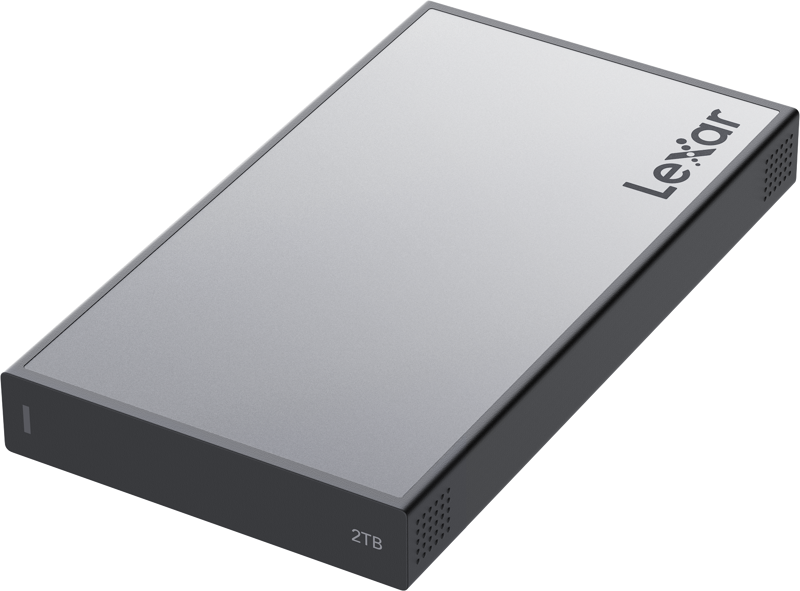
LEXAR Professional Workflow Go I with CFexpress 4.0 Type B reader and 2TB SSD
€ 847.50€ 1 050.90 (incl. VAT) -
Card readers, External drives
LEXAR Professional Workflow Go I with Dual SD reader and 2TB SSD
€ 815.10€ 1 010.72 (incl. VAT) -
Card readers
LEXAR Cardreader SD & microSD (LRW470U) UHS-II Dual-Slot Reader (USB-C)
€ 15.18€ 18.82 (incl. VAT) -
 Card readers
SMALLRIG 4746 5-in-1 Memory Card Reader for Travel Photography
€ 36.72€ 45.53 (incl. VAT)
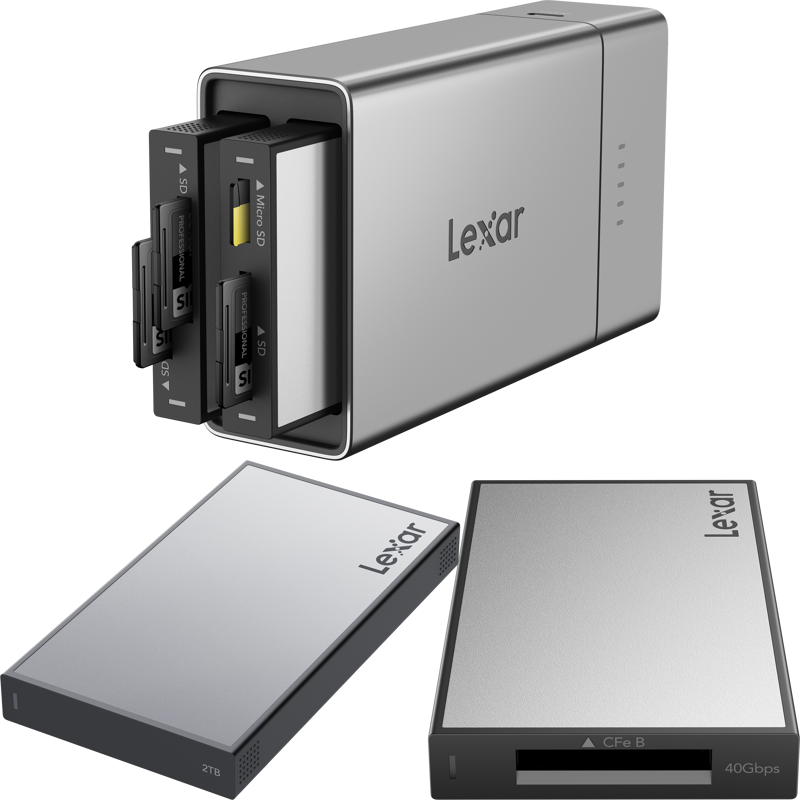
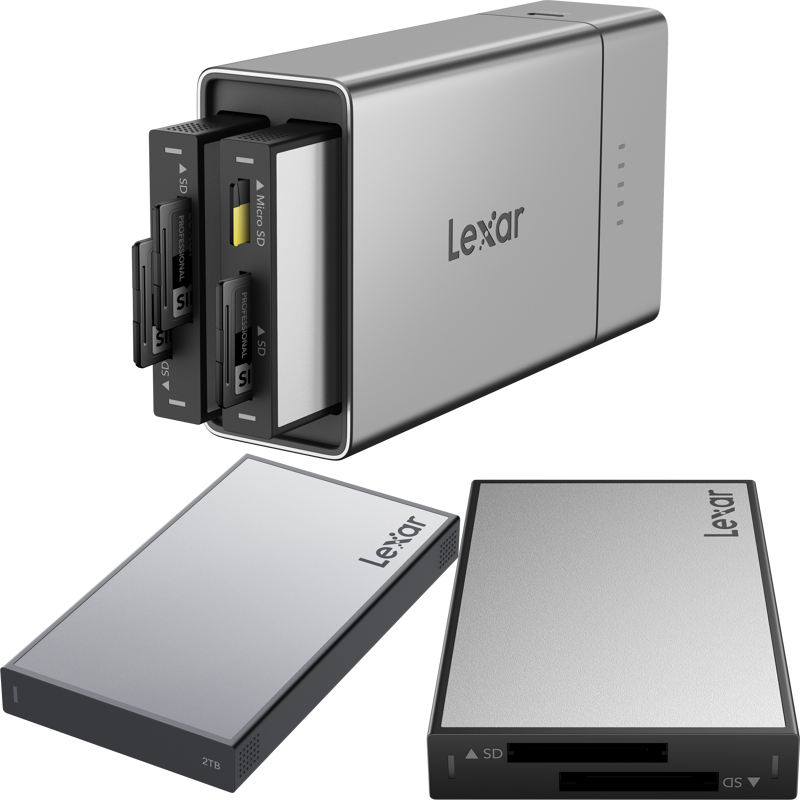

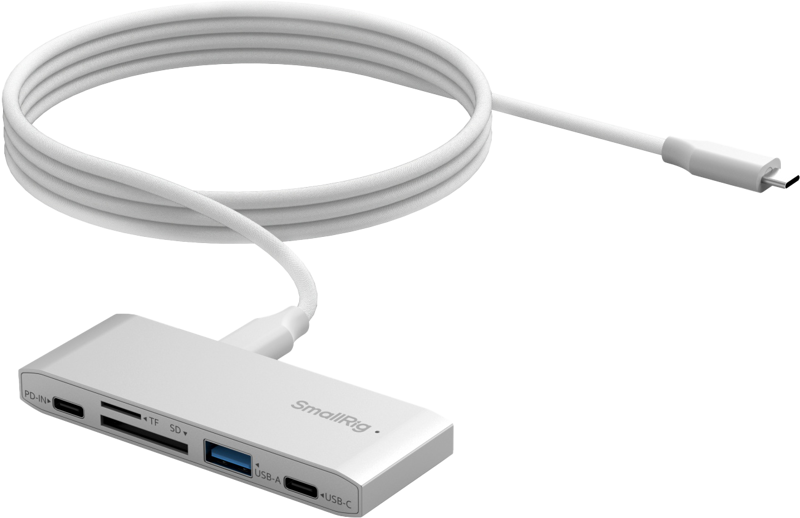
Offload your media to two separate portable drives right after a card fills up. Keep Drive A in your main gear bag and hand Drive B to a team member or pack it in a separate bag during travel.
Phase 2: Post-Production Editing and Local Redundancy
Once footage reaches the editing suite, copy the verified files to high-performance local storage. Editors working with high-bitrate raw formats need fast read speeds and large storage capacities.
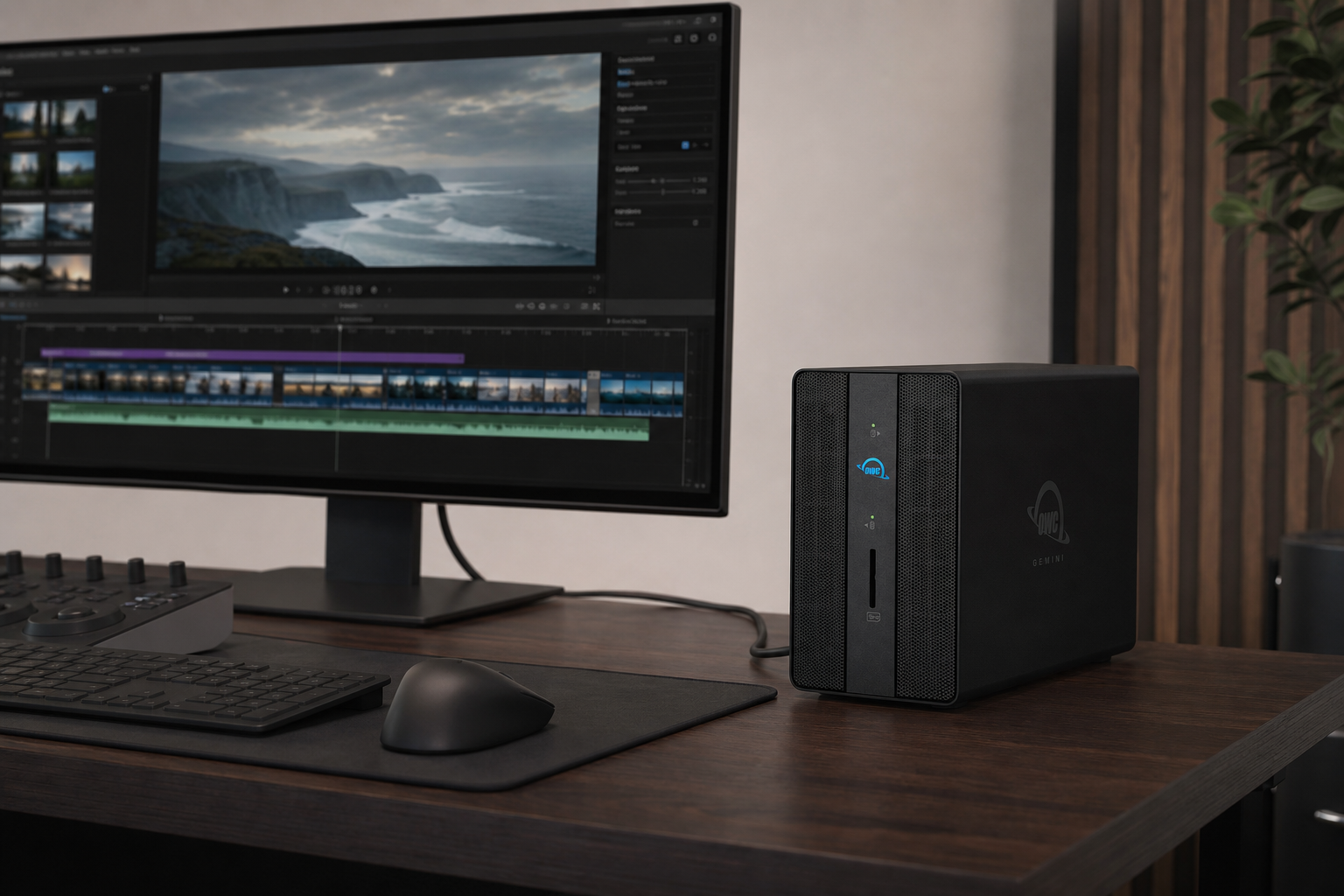
Desktop RAID arrays and network-attached storage (NAS) devices provide the high bandwidth required to play back multiple streams of 4K or 8K video smoothly. They also allow multiple editors to collaborate across a local network.
-
 External drives
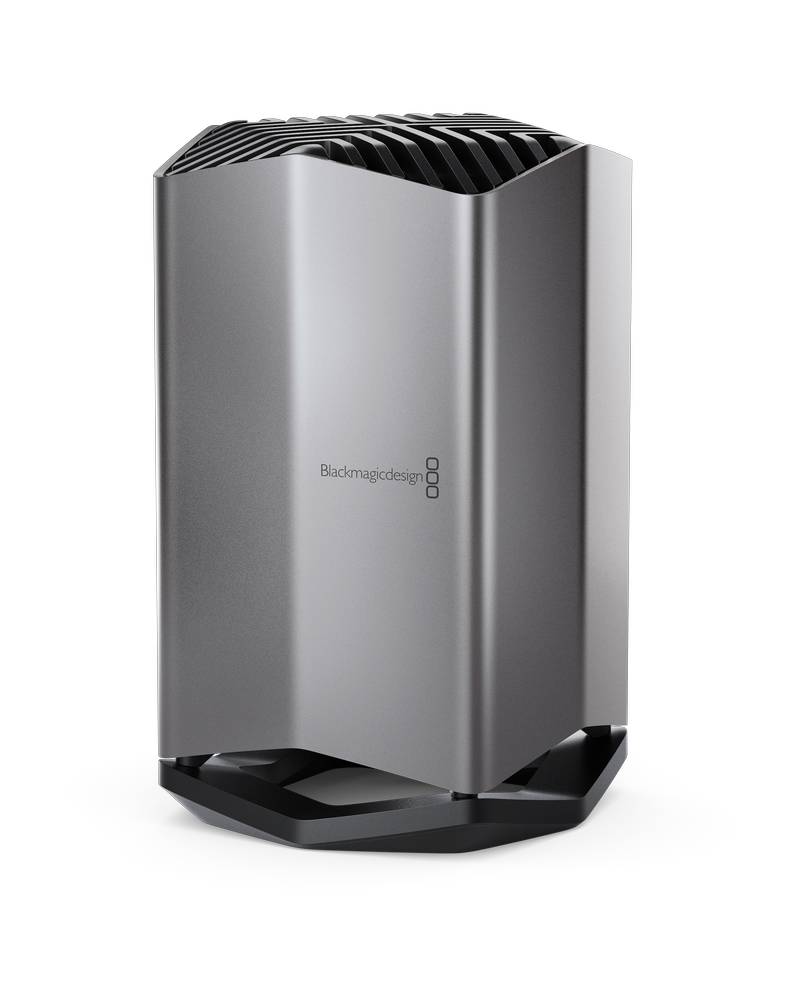
BLACKMAGIC DESIGN Cloud Store 20TB
€ 11 899.00€ 14 754.76 (incl. VAT) -
 External drives
OWC Gemini Thunderbolt 3 Dock & Dual-Drive RAID External Storage w/3.5” SATA HDD (12TB x 2) 24TB
€ 1 283.33€ 1 591.33 (incl. VAT) -
 External drives
OWC ThunderBlade Ultra High-Performance Thunderbolt 3 Storage Solution, 16TB
€ 4 935.89€ 6 120.50 (incl. VAT)
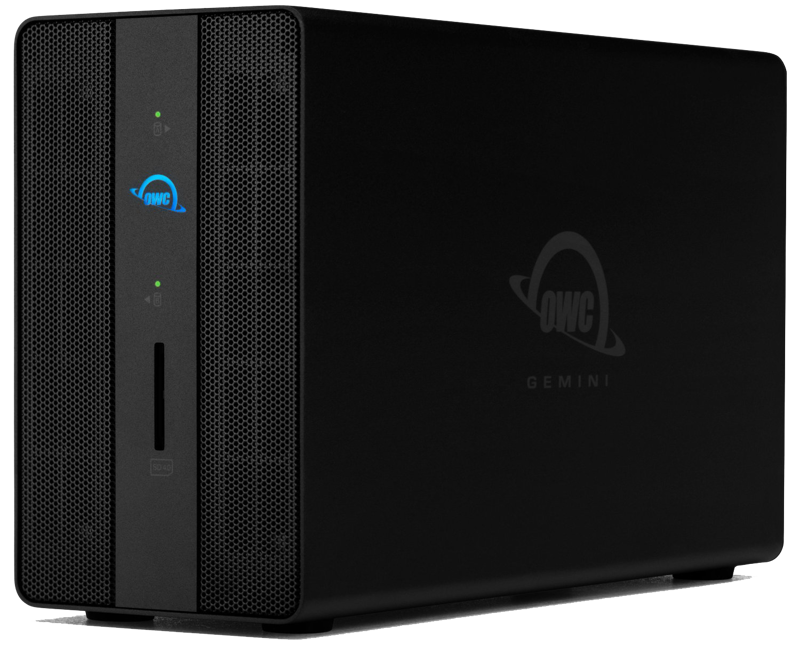
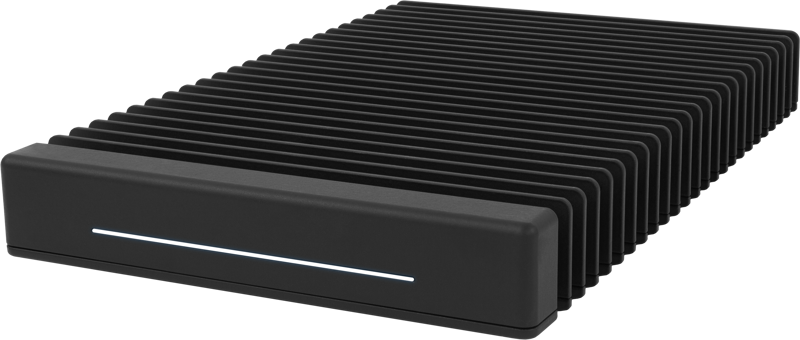
Keep your active timeline assets on these high-speed volumes. Use background backup utilities or automatic sync tools to copy project files hourly and raw media daily to a secondary local desktop drive.
Explore more stationary desktop storage in our selection of external drives.
Phase 3: Offsite Syncing and Long-Term Archiving
When a project ends and receives client sign-off, move active assets into cold storage. Keeping finished projects on high-speed NVMe or SSD storage wastes expensive working space.
Transfer project files to lower-cost, high-capacity hard drives or cloud archives. Cloud platforms provide automated offsite redundancy. For studios handling massive amounts of video, combining local archive drives with cloud sync provides the best balance of speed and monthly cost.
Storage Tiers Explained
Aligning your storage media with your project lifecycle keeps storage budgets under control without sacrificing speed:
| Storage Tier | Media Type | Primary Use Case | Speed Requirements |
|---|---|---|---|
| Hot (Active Work) | NVMe SSDs / Thunderbolt Arrays | Live editing, timeline rendering, color grading | Very High (1000MB/s – 2800MB/s) |
| Warm (Nearline) | Multi-Bay HDD RAID / Local NAS | Asset backup, secondary project copies | Moderate (250MB/s – 600MB/s) |
| Cold (Archive) | High-Capacity HDD / LTO Tape / Cloud | Long-term project retention after delivery | Low (Focus on cost per TB and durability) |
Securing Backup Data Against Ransomware and Theft
Backup security involves more than hardware failure. Unencrypted drives carrying client projects or unreleased commercial footage expose you to severe privacy and financial risks if stolen or lost.
Offline and Air-Gapped Backups
Authoritative backup immutability guidelines emphasize isolated copies to block ransomware attacks. If a backup drive stays connected to your editing network, malware can encrypt your backups alongside your main working files.
Use an air-gapped backup routine: connect backup drives only during copy operations, then disconnect them and store them safely offline.
Hardware Encryption
When moving drives between locations, encrypt your storage to block unauthorized access. Software encryption can slow down video performance on laptop systems.
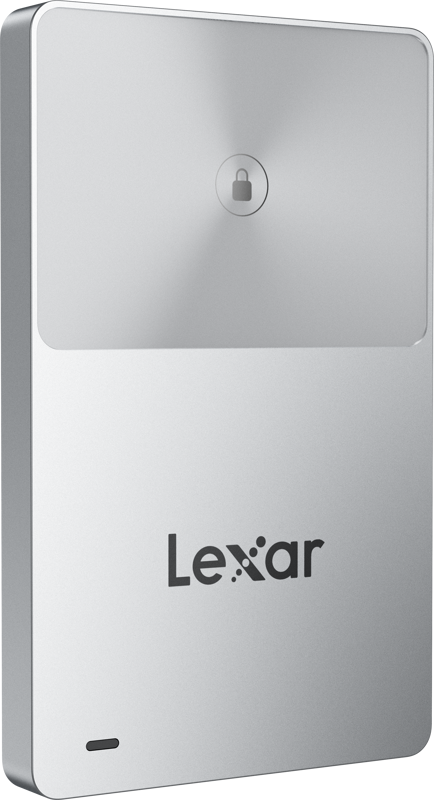
Hardware-encrypted SSDs use internal security processors to lock data without reducing transfer speeds. If a drive is lost on location, sensitive media stays completely unreadable without your security key or NFC authorization.
Key Takeaways
- Follow the 3-2-1 Rule: Keep 3 copies of all media on 2 different storage types, with 1 copy stored offsite.
- Always Verify Transfers: Use checksum offload utilities before formatting any camera memory card.
- RAID Is Uptime, Not Backup: Multi-drive RAID arrays protect work performance, but they cannot replace offsite or offline backups.
- Separate Storage Tiers: Use fast NVMe SSDs for editing, high-capacity HDD arrays for nearline backup, and cloud or cold drives for archives.
- Isolate and Encrypt: Keep backup drives disconnected from networks to block ransomware, and use hardware encryption to protect sensitive footage on the move.
Secure Your Media Workflow Today
Prevent unexpected drive failures from derailing your production schedule. Explore our full range of recording media to upgrade your field ingest speeds, or contact our technical support team for expert guidance on setting up custom RAID and network storage for your studio.