





HDMI Splitter vs Switch: Which One Do You Need?
An HDMI splitter sends one source to many displays. An HDMI switch lets many sources share one display. That is the whole difference, and it is set by the port count: one input and several outputs is a splitter; several inputs and one output is a switch.
Pick by asking one question: what do I have more of, sources or screens?
| HDMI splitter | HDMI switch | |
|---|---|---|
| Ports | 1 in, 2–8 out | 2–5 in, 1 out |
| What it does | Copies one signal to every output | Passes one chosen input at a time |
| Typical job | Camera to monitor, recorder and client screen | Laptop, camera and player on one projector |
| Main risk | Mixed displays force a lower resolution | Wrong input shown, HDCP or format mismatch |
| Many sources and many screens | Not enough: use a matrix switcher | Not enough: use a matrix switcher |
One source, many displays: when you need a splitter
You have one camera, laptop or media player. You want the same picture on a monitor, a recorder and a TV in the green room. Every output shows the identical image. A splitter cannot give each screen different content, and it cannot extend a computer desktop.
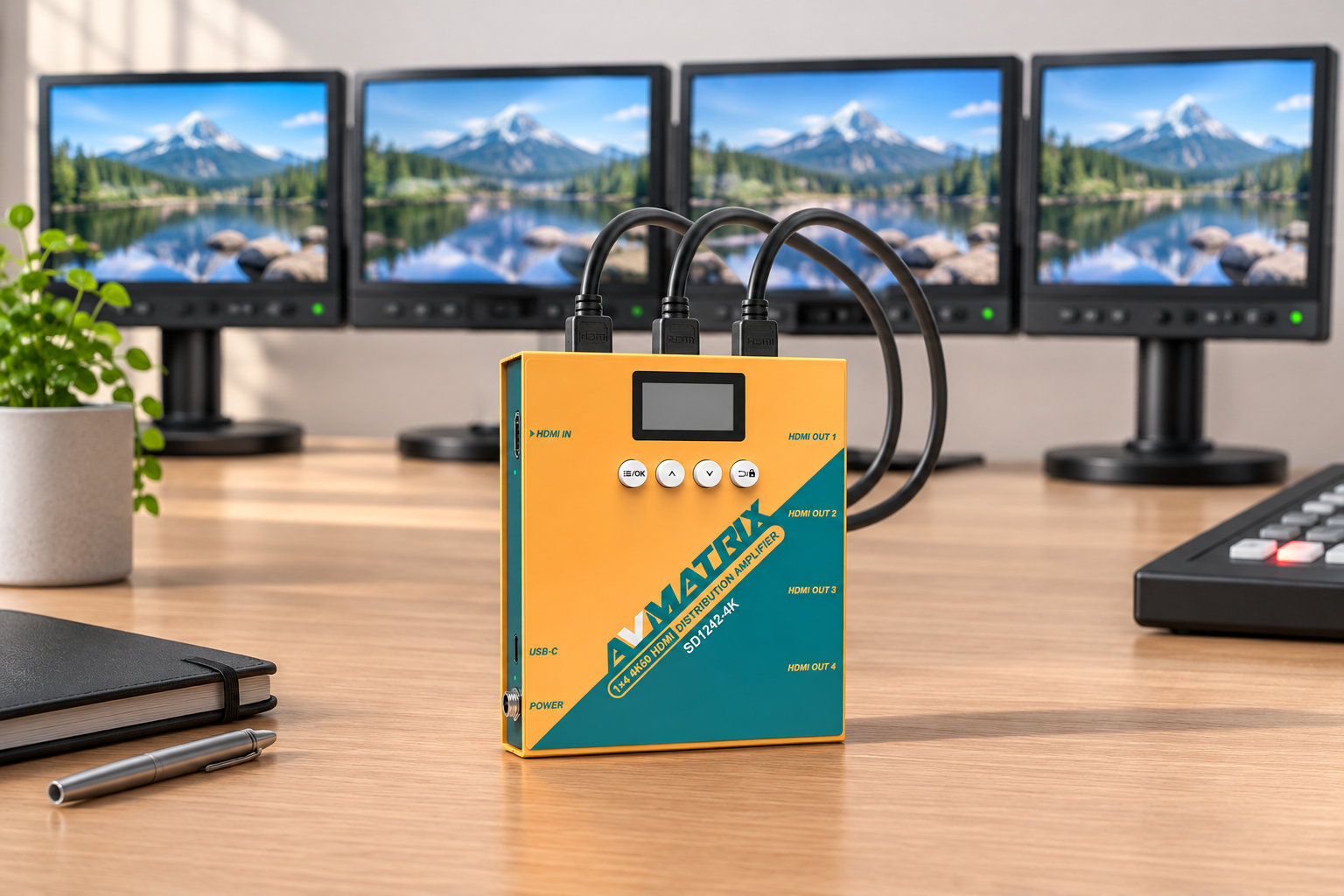
On a shoot, this is the daily case: one camera feeds the director’s monitor, a recorder and a client screen. The signal goes in once and comes out several times.
In pro setups the same device is often called a distribution amplifier. It does the same job and is built for installs and productions. If you need the same HDMI signal on four screens at 4K60, a 1×4 4K60 HDMI distribution amplifier is the right tool. If some of those outputs must be SDI, a splitter that also converts, like the AVMATRIX SD2080, saves you extra boxes.


The catch: every display gets the same format
The source asks each display what it can show. That information is called EDID (Extended Display Identification Data). It lives in the display and lists the supported resolutions and audio formats, as CEDIA explains. A splitter sits between the source and the displays, so it must decide which EDID the source sees.
Most splitters offer a few modes:
- Auto: the splitter compares the displays and sends the lowest shared format. Tripp Lite’s manual gives the example: mix 1080p and 4K monitors and all screens show 1080p.
- Copy: the splitter copies the EDID of the display on output 1. If that is a 4K screen and another display only does 1080p, that display may show no image.
- Downscale: the splitter keeps 4K on one output and scales to 1080p for the other. Not every model has this, and refresh rates usually have to match.
- Fixed presets: DIP switches force a set format, such as 1080p with 2-channel audio.
A worked example. You shoot 4K60 and want a 4K director’s monitor, a small 1080p confidence monitor, and a 4K recorder. With auto EDID, all three get 1080p, and your recorder files are not 4K. With copy mode and the 4K monitor on output 1, the recorder is fine, but the 1080p monitor may go black. The fix is a splitter with a downscaler. Check the spec sheet for the word “downscale” before you buy.
Many sources, one display: when you need a switch
Now flip it. You have a laptop, a camera and a media player. You have one projector or one screen. A switch has several inputs and one output. You press a button, or it auto-detects, and the chosen source goes to the display. Only one source is visible at a time.
This is the right box for meeting rooms, classrooms, and a monitor shared by a camera and a laptop. For manual or auto-sensing switching on a single screen, 2×1 to 5×1 models are common.
A basic switch only selects an input. It does not scale, convert or synchronize different formats. If your four sources are cameras at different frame rates and you want clean cuts, you do not need a switch. You need a video switcher.
Switch or production switcher?
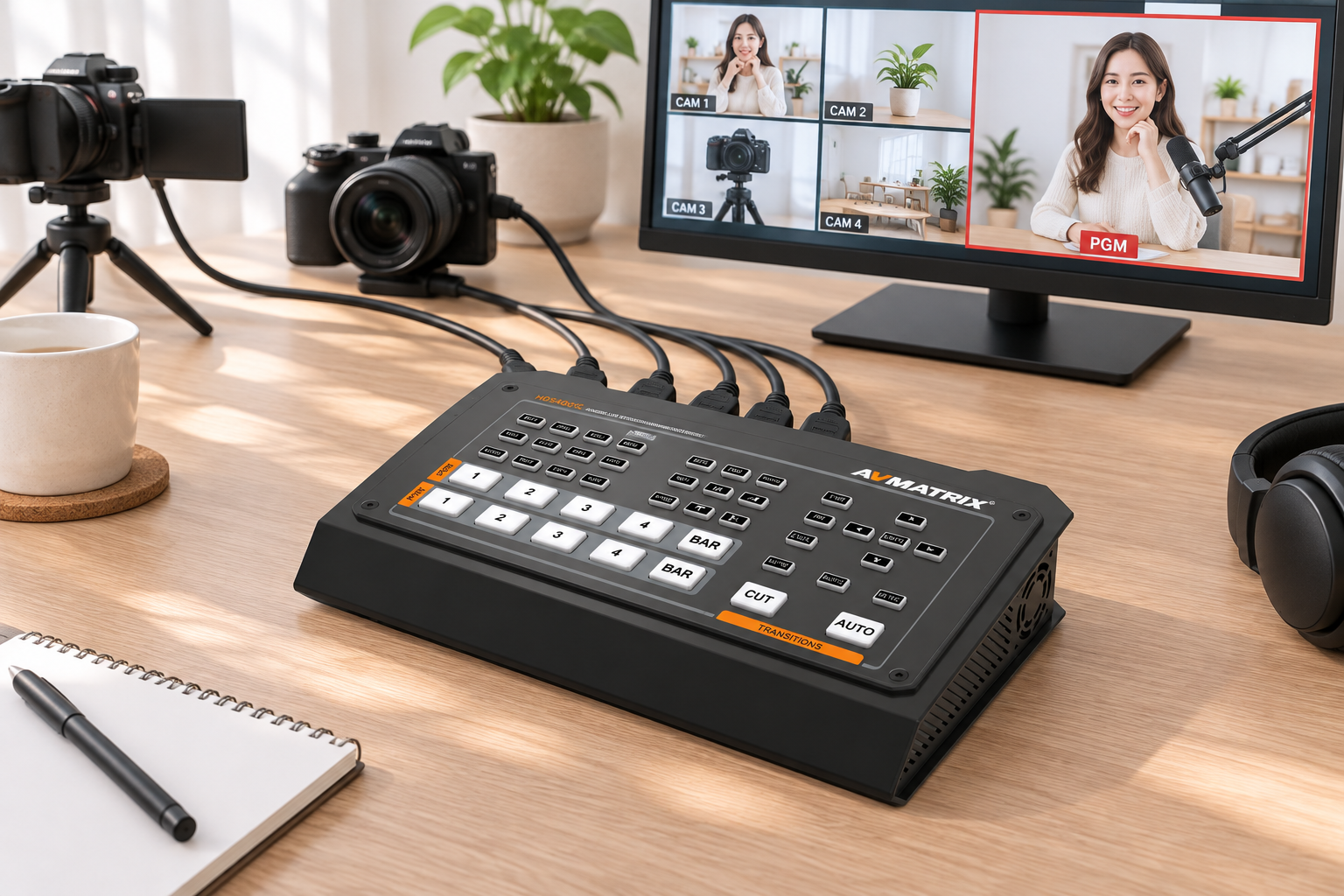
A production switcher is built for live work. Blackmagic’s ATEM Mini, for example, takes 4 or 8 HDMI inputs, standards-converts every input, and lets you cut or use transitions. A basic switch has none of that. A four-channel unit like the AVMATRIX HVS0401E adds program outputs, a multiview output and recording.
Use this rule:
- Choose a switch if one person picks the source and nobody is watching the transition.
- Choose a production switcher if you cut between cameras for an audience, a stream or a recording.

Many sources and many displays: use a matrix
Some jobs need both. Two projectors, one confidence monitor, three sources, and each screen shows something different. A splitter will not do this, and neither will a switch. An HDMI matrix switcher routes any input to any output, or one input to several outputs, as Extron describes. Common sizes are 4×2, 4×4 and 8×8.
Do not rely on the “bidirectional” boxes that say they work as both a switch and a splitter. Product pages for these boxes say only one screen shows at a time. They are a switch you can plug in either way, not a true splitter. And a normal splitter should not be turned around to work as a switch, because its ports are made for one direction of signal.
Compatibility checks before you buy
Both devices sit in the middle of the chain, so they can break the chain. Check these four things.
- Bandwidth. HDMI 2.0 is up to 18 Gbps and handles 4K60. HDMI 2.1 is up to 48 Gbps and adds modes like 4K120 and 8K60, per the HDMI Forum. If your camera or recorder runs 4K at a higher frame rate, the splitter or switch must be rated for it. An 18 Gbps box will drop you to a lower mode.
- HDCP. This is copy protection used on protected content. For 4K streaming, Roku states that every device in the chain must support HDCP 2.2, or you get a lower resolution. Check the splitter or switch lists the HDCP version your source uses. A black screen can mean an HDCP mismatch somewhere in the chain.
- EDID control. On a splitter, look for DIP-switch or copy modes. On a switch, check the spec sheet for EDID management, so each source sees a format your display accepts.
- Cables and power. Each hop adds a cable. Use certified high-speed cables, and use the power adapter the unit comes with. For cable choice, see our guide to HDMI cables for video production. How far each run can go is a separate topic, covered in HDMI cable maximum length.
If a source or display still gives trouble, a quick test is to bypass the box. Connect the source straight to the display. If it works, the splitter or switch is the cause, and EDID or HDCP is the first thing to check.
What to do when the displays are far apart or are SDI
HDMI is built for short runs inside a room. If your outputs go to a different room, or your venue uses SDI, a plain splitter is the wrong tool. Look at HDMI/SDI converters and signal processing gear instead, or an extender splitter that sends HDMI over network cable. If you capture the signal on a PC, our capture card guide shows what to pair with it.
Key Takeaways
- A splitter is 1 in, many out: same picture on every screen. A switch is many in, 1 out: one source at a time.
- On a splitter, the lowest-capability display can pull every output down to its resolution. Choose a model with EDID modes and a downscaler for mixed screens.
- For live camera cuts, use a production switcher, not a basic switch.
- For many sources to many screens, you need a matrix.
- Match the box to your signal: HDMI 2.0 or 2.1 bandwidth, HDCP 2.2 for protected content, and certified cables.
Not sure which setup fits your rig? Browse our video mixers and HDMI cables, or contact the MediaGear team with your sources and screens. We will tell you which box fits.


