Capture Cards for Live Streaming: A Buyer’s Guide
Connecting mirrorless cameras, gaming consoles, or dual-PC setups to a live stream requires dedicated hardware capture. Standard webcams cannot match the sensor size and image control of proper cameras. Software capture can also overwhelm your graphics card during high-load rendering.
Dedicated capture cards solve this issue by ingesting uncompressed video feeds and converting them into standard USB or PCIe signals. Your computer recognizes these feeds as driver-free USB Video Class (UVC) devices. They integrate instantly into OBS Studio, vMix, Zoom, and Microsoft Teams.
In our experience, buying hardware without verifying your signal path leads to frame drops and audio sync errors. Choosing the right card depends on your video connectors, target resolution, and frame rates. This guide breaks down the right choices for every live production workflow.
Compact HDMI Capture Cards for Single Cameras
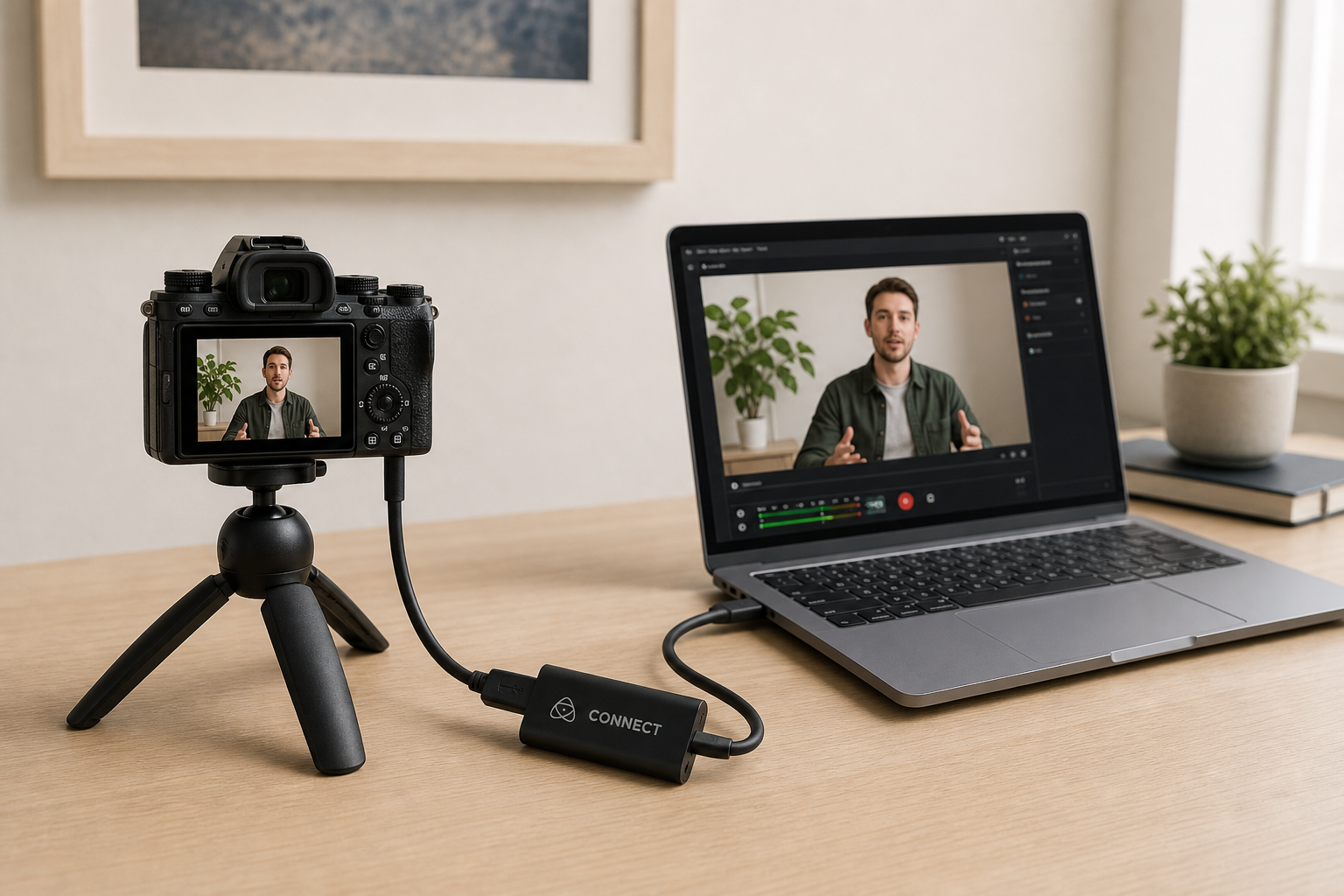
If you connect a DSLR, mirrorless camera, or standard HDMI source, external USB capture dongles provide a clean solution. These bus-powered devices take uncompressed HDMI video and convert it into a USB stream without external power bricks.
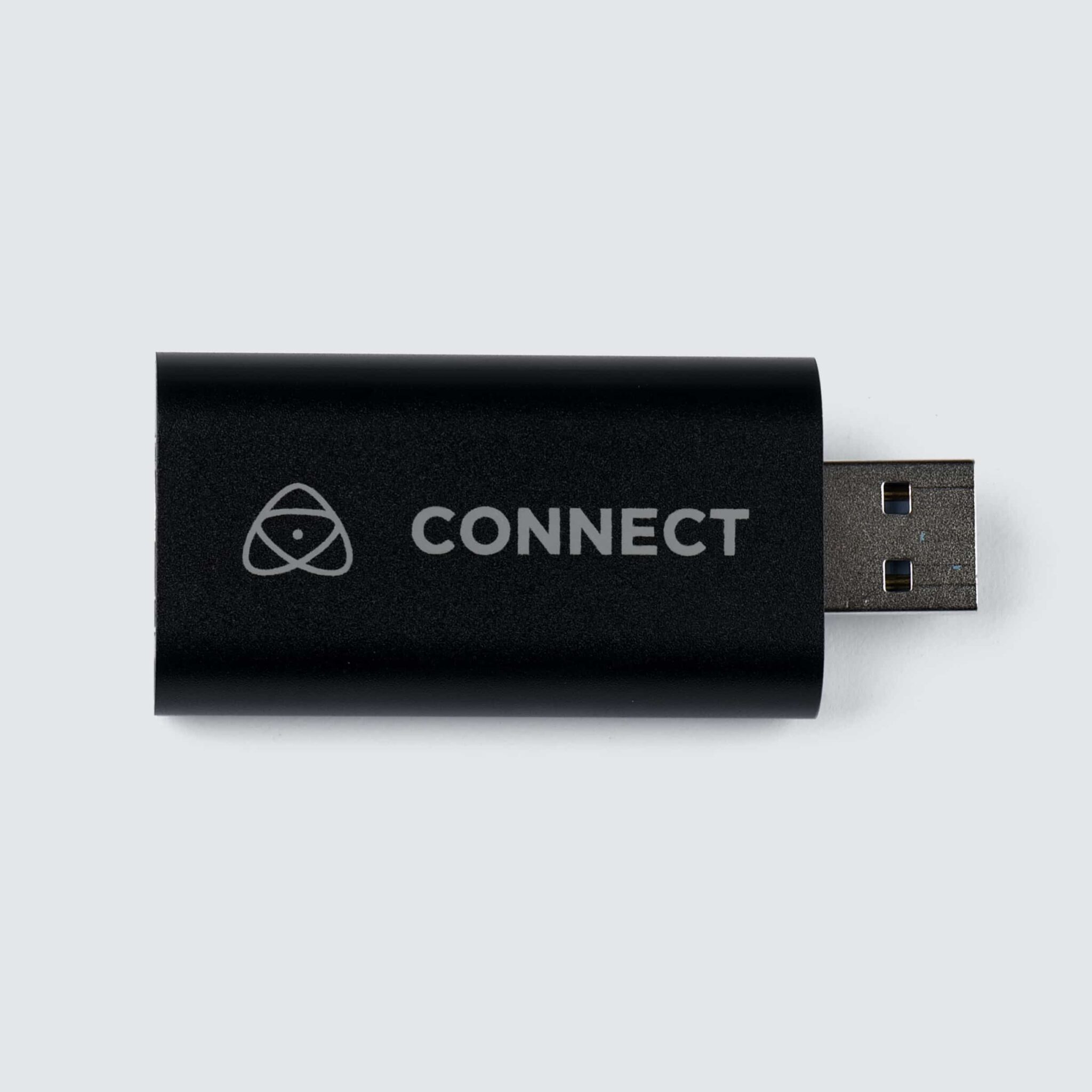
For light travel and standard 1080p60 webcasts, compact entry-level dongles handle image scaling automatically. The Atomos Connect accepts up to 4K30 HDMI feeds and outputs a clean 1080p60 USB signal. It works well for webcasts and remote commentary where rig size matters.
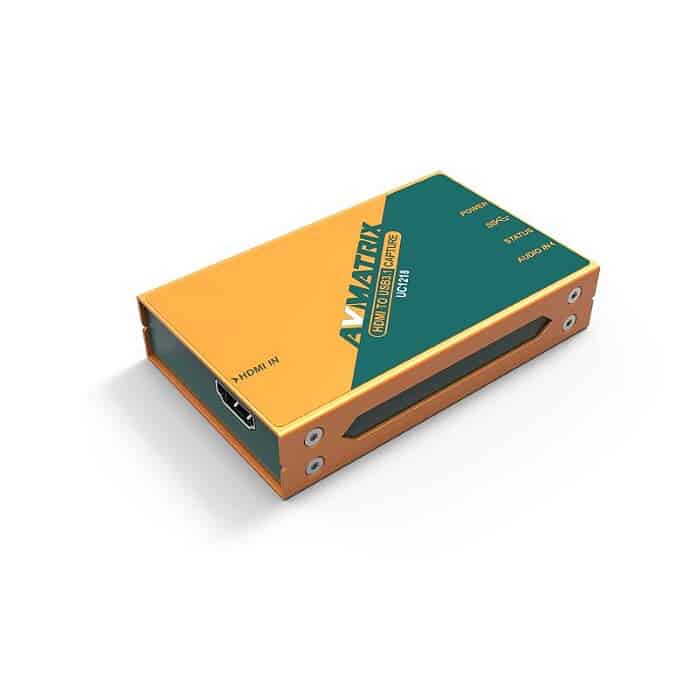
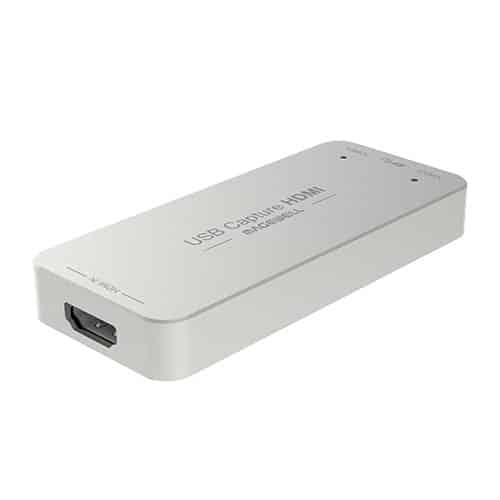
For 24/7 continuous broadcasting, dedicated signal processing gear delivers better thermal design and onboard processing. The AVMATRIX UC1218 offers automatic signal detection up to 1080p60 with uncompressed 200 MB/s data transfers. Choosing Magewell hardware like the Magewell USB Capture HDMI Gen 2 adds hardware-based deinterlacing, cropping, and color space conversion. The dongle processes these tasks internally, which frees up critical CPU power on your streaming host.
High-Performance 4K & Dual-PC Capture Devices
Gaming creators and dual-PC streamers face specific workflow demands. You need zero-latency HDMI passthrough to feed your main gaming monitor while sending a captured feed to your streaming PC.
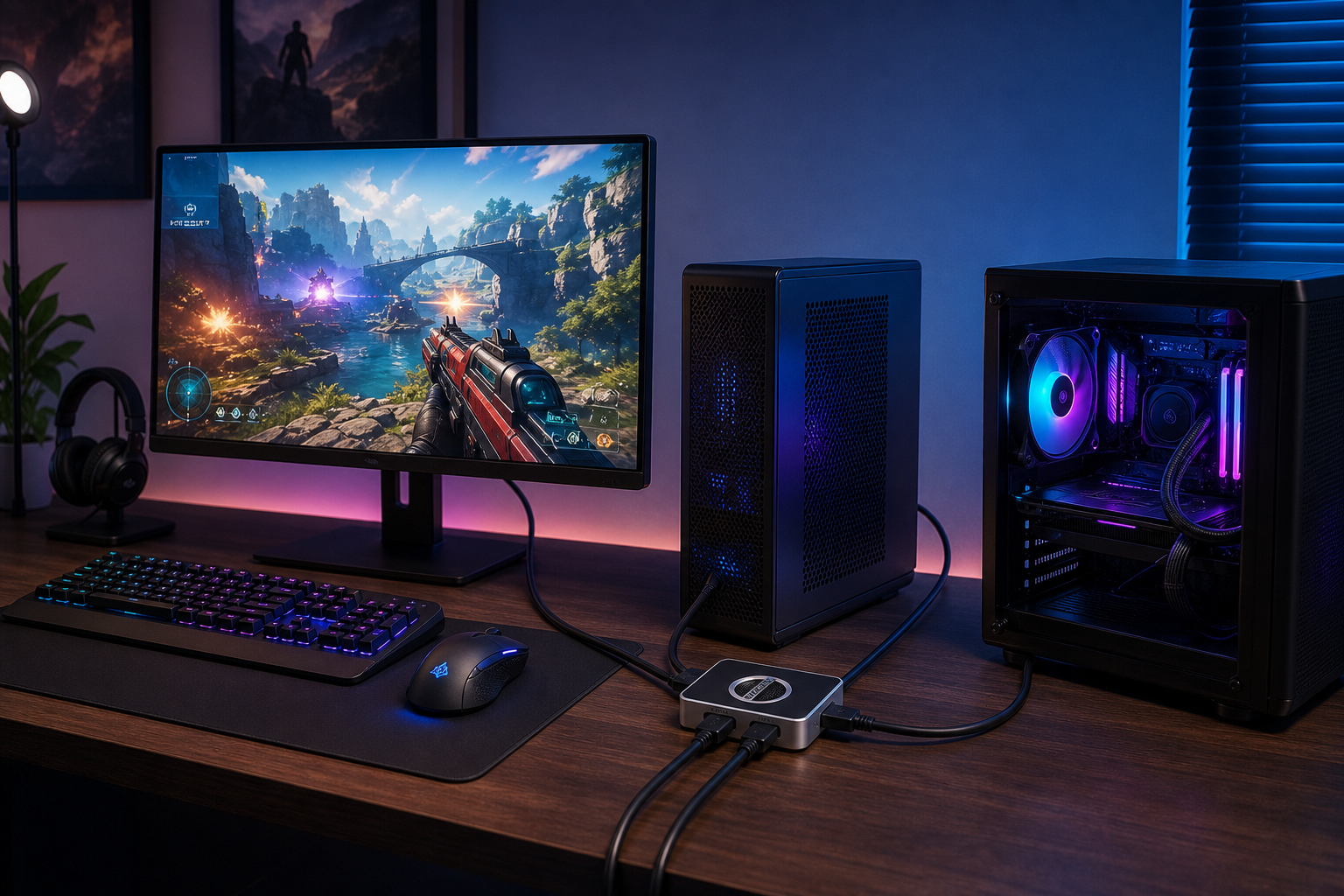
We’ve seen setups fail because of improper signal routing or copy protection settings. According to Intel’s dual-PC setup guidelines, routing HDMI directly from your gaming GPU to a capture card prevents encoding lag on your primary system. Remember that gaming consoles like the PlayStation 5 use HDCP digital copy protection. You must turn off HDCP in your console settings before capturing gameplay.
When capturing 4K signals or adding analog audio feeds, select hardware with dedicated loop-through ports and local audio jacks:
- Magewell USB Capture HDMI Plus: Ingests inputs up to 4K resolution (4096×2160) and outputs a clean 1080p stream. It includes a 3.5 mm microphone input and headphone jack for direct monitoring.
- Magewell USB Capture HDMI 4K Plus: Captures full 4K at 60 frames per second over HDMI 2.0. It provides zero-latency 4K60 loop-through so you can play in high resolution while streaming.
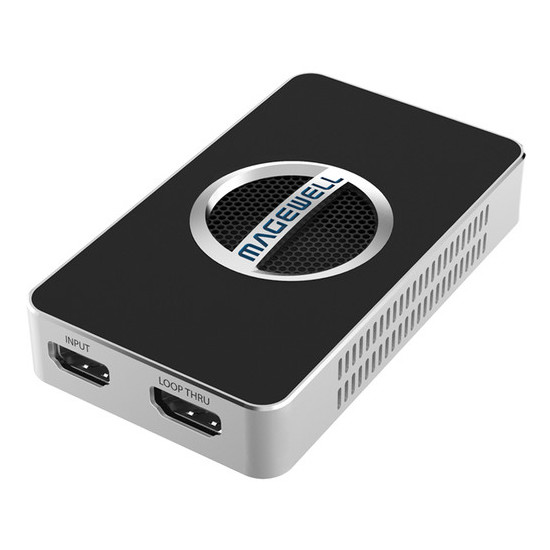
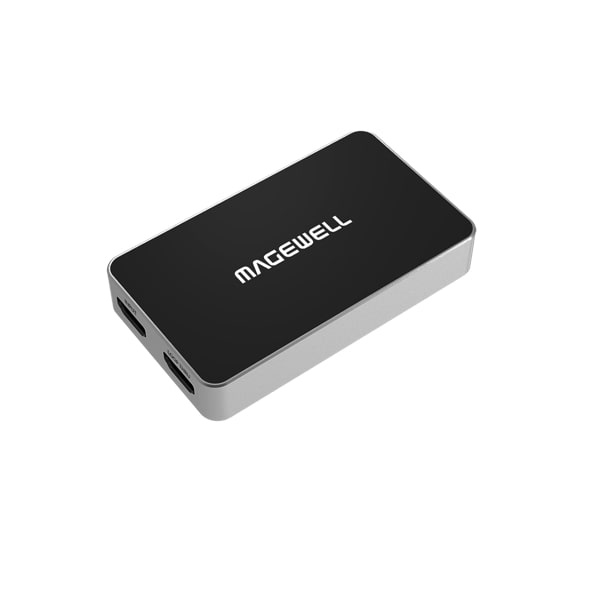
If your setup requires direct monitoring or continuous recording, pair your capture card with certified high-speed HDMI cables to prevent unexpected signal drops.
Professional SDI & Multi-Source Capture Interfaces
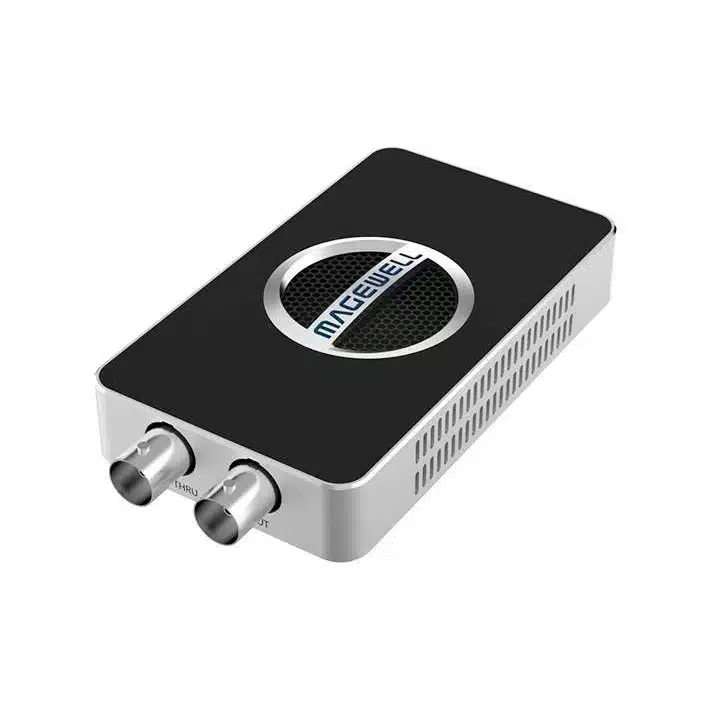
In professional broadcast setups, studios, and live venues, standard HDMI cables can easily pull loose. For long cable runs over 10 meters, SDI cables with locking BNC connectors are mandatory. Read our guide on HDMI vs SDI for video to learn more about signal distance and connector physical security.
When bringing long-distance feeds from PTZ cameras or production switchers into your system, SDI capture cards maintain reliable signals:
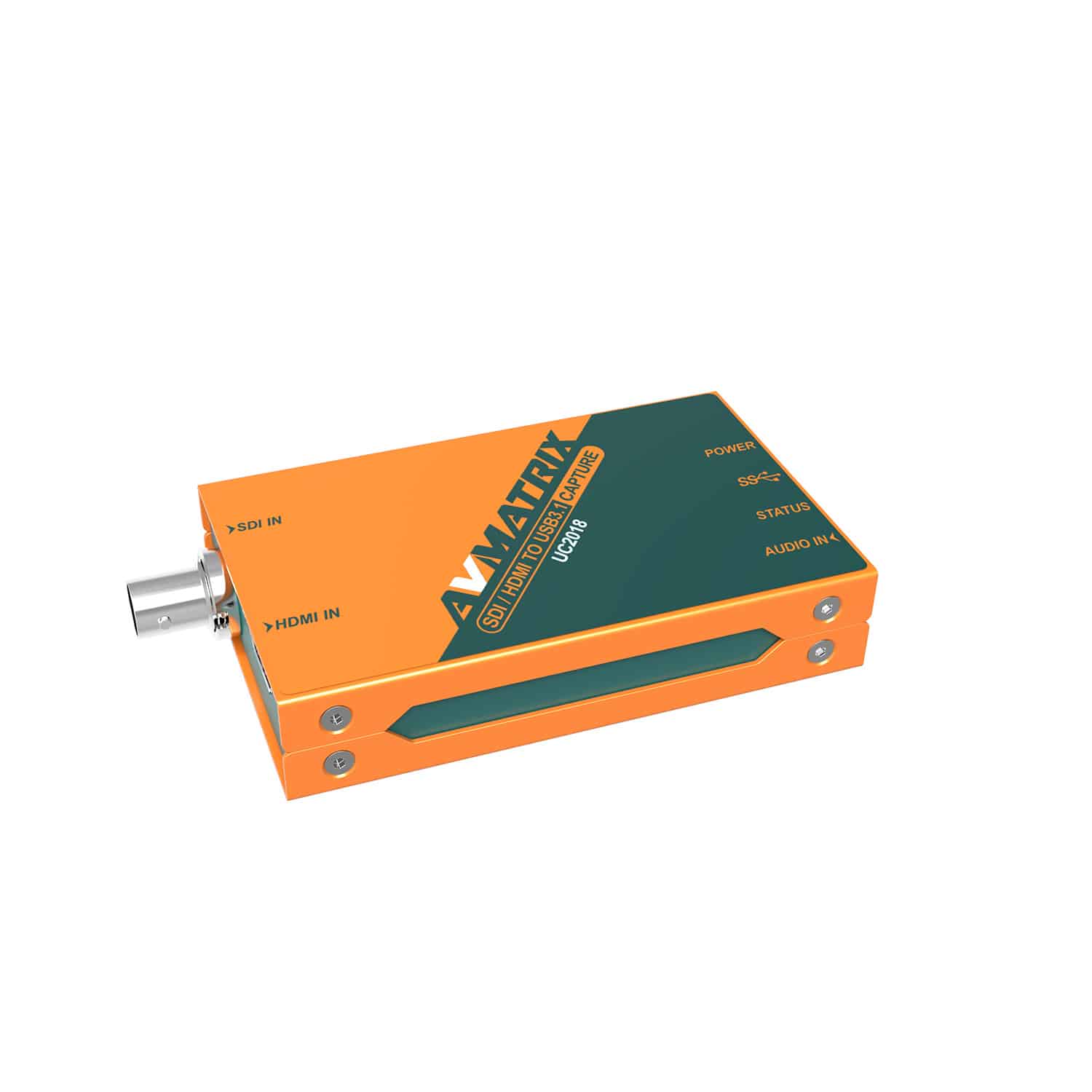
- AVMATRIX UC2018: Accepts both HDMI and SDI signals, giving you a flexible dual-interface capture device for field work.
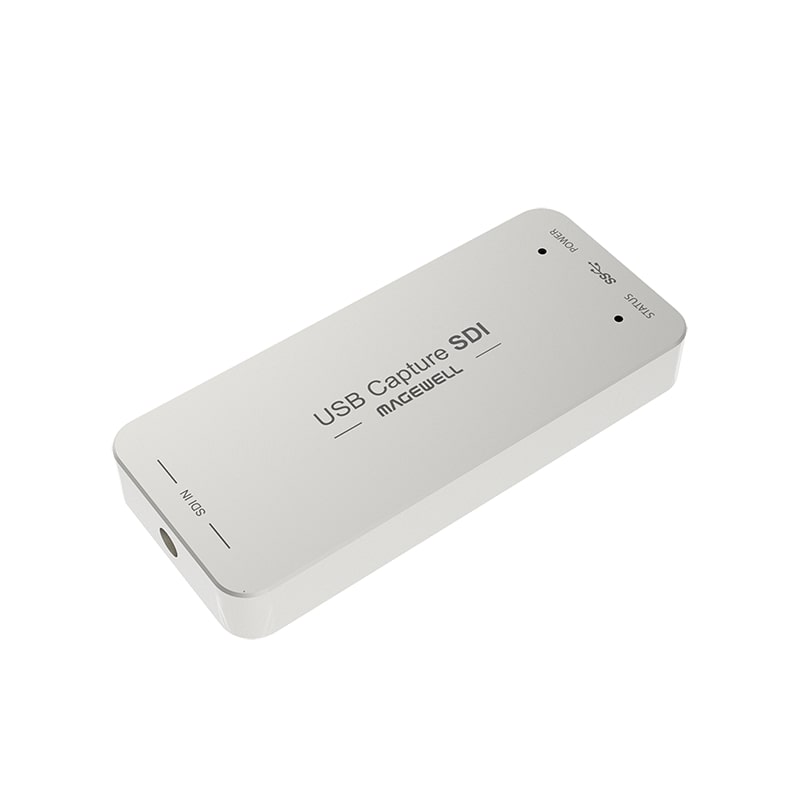
- Magewell USB Capture SDI Gen 2: Converts 3G-SDI feeds up to 1080p60 to USB 3.0 with built-in hardware image processing.
- Magewell USB Capture SDI Plus: Includes an SDI loop-through port and analog line audio ports for live monitoring.
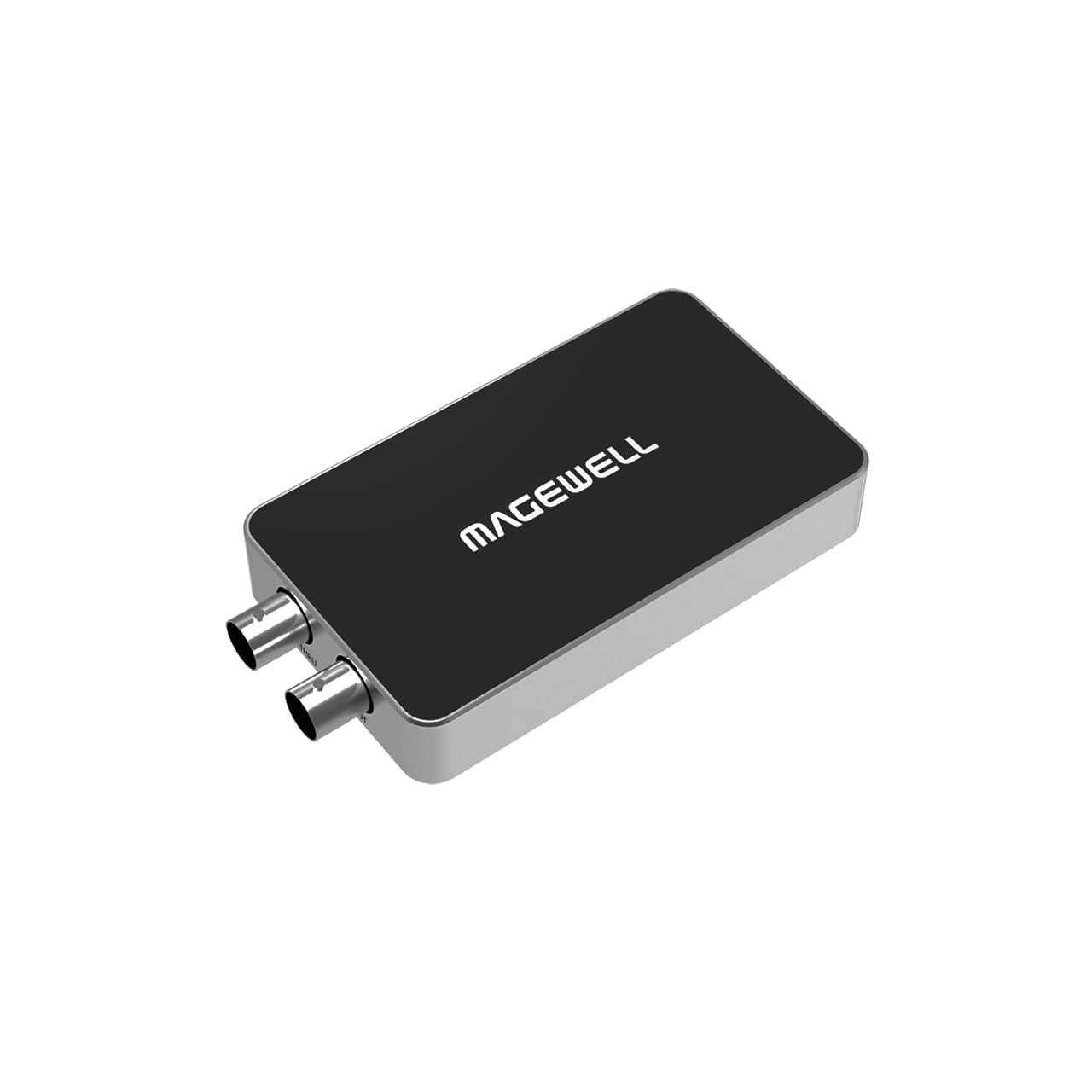
- Magewell USB Capture SDI 4K Plus: Captures 6G-SDI and 4K SDI feeds up to 4096×2160 for high-end production pipelines.
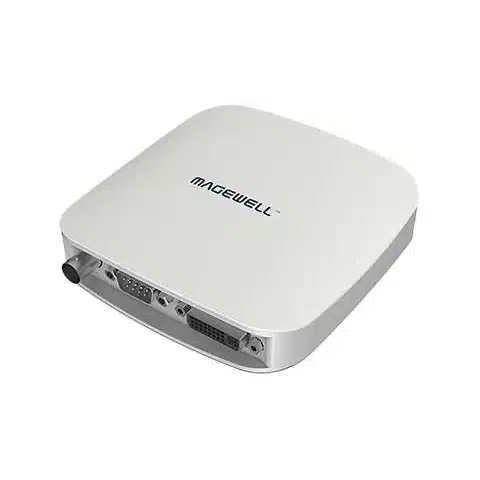
- Magewell USB Capture AIO: Ingests SDI, HDMI, DVI, and VGA inputs on a single unit, solving connectivity challenges with legacy gear.
-
 SIGNAL PROCESSING, Streamers
MAGEWELL USB Capture SDI 4K Plus – 32100
€ 459.00€ 569.16 (incl. VAT) -
 SIGNAL PROCESSING, Streamers
MAGEWELL USB Capture AIO – 32110
€ 499.00€ 618.76 (incl. VAT) -
 SIGNAL PROCESSING, Streamers
AVMATRIX UC2018 HDMI/SDI to USB3.1 capture
€ 199.00€ 246.76 (incl. VAT)IN STOCK -
 SIGNAL PROCESSING, Streamers
MAGEWELL USB Capture SDI Plus – 32050
€ 349.00€ 432.76 (incl. VAT) -
 SIGNAL PROCESSING, Streamers
MAGEWELL USB Capture SDI Gen 2 – 32070
€ 289.00€ 358.36 (incl. VAT)
Capture Card Comparison Guide
Use this reference table to match your production setup with the right hardware specs:
| Production Workflow | Video Input | Max Passthrough | Max Capture Resolution | Recommended Feature |
|---|---|---|---|---|
| DSLR / Mirrorless Camera | HDMI | None | 1080p60 | Compact dongle, UVC plug-and-play |
| Dual-PC Gaming | HDMI 2.0 | 4K60 | 4K60 / 1080p60 | Zero-latency HDMI loop-through |
| Live Event / Venue SDI | 3G/6G-SDI | SDI Loop-out | 1080p60 / 4K60 | BNC locking connector, long cable support |
| Hybrid Studio & Switchers | HDMI & SDI | None | 1080p60 | Multi-input selection, hardware scaling |
Hardware Selection Checklist
Before buying your capture hardware, review these key technical parameters.
Host Computer Interface
USB 3.0 (USB 3.1 Gen 1) offers 5 Gbps bandwidth, which easily handles uncompressed 1080p60 YUY2 video. If you capture 4K at 60 frames per second without color compression, confirm that your card and host port support USB 3.2 Gen 2 or higher.
Local Monitoring
If your camera or gaming rig feeds a local display, select a capture card with hardware loop-through. If your capture card lacks a loop-out port, feed a dedicated field monitor or an external video recorder that offers secondary SDI or HDMI outputs.
Audio De-embedding
Capturing audio through HDMI or SDI keeps video and voice perfectly synced. If you use a hardware audio mixer, pick a capture card with 3.5 mm audio inputs. This lets you embed analog audio directly into the digital video stream before it reaches your streaming software.
Key Takeaways
- Match your physical connectors: Use HDMI capture cards for short camera runs and SDI devices for runs exceeding 10 meters.
- Prioritize hardware passthrough: Choose cards with zero-latency loop-out ports so you can monitor video without software latency.
- Offload processing: Select devices with internal hardware scaling, deinterlacing, and color space conversion to protect host CPU power.
- Verify host bandwidth: Confirm that host USB ports match your required frame rate and color depth (USB 3.0 for 1080p60; USB 3.2 for uncompressed 4K).
Explore our full range of streamers to compare current models, or reach out to our team to build a complete live streaming workflow.