How to Set Up a Multi-Camera Live Stream in 6 Steps
A multi-camera live stream needs four things: cameras with a clean video output, a switcher that picks the camera the viewers see, one audio source, and a stable upload connection. Get those four right and the rest is practice.
Here is the short version:
- Plan 2–3 camera angles, not more.
- Use cameras with a clean HDMI or SDI output.
- Choose HDMI or SDI based on your cable run.
- Pick a switcher with enough inputs for today and next year.
- Send one mixed audio feed and fix lip-sync.
- Check your upload speed and test the full chain before you go live.
The sections below explain each step and the mistakes we see most often.
Step 1: Decide how many cameras and angles you need
Start with the story, not the gear. Most talks, church services, podcasts and small events work well with three angles: a wide shot of the whole scene, a medium shot of the speaker, and a close-up or detail shot.
Each extra camera adds a cable, a power source, a monitor feed and a person or preset to control it. Start with two or three. Add a fourth only when you can say what it shows that the others cannot.
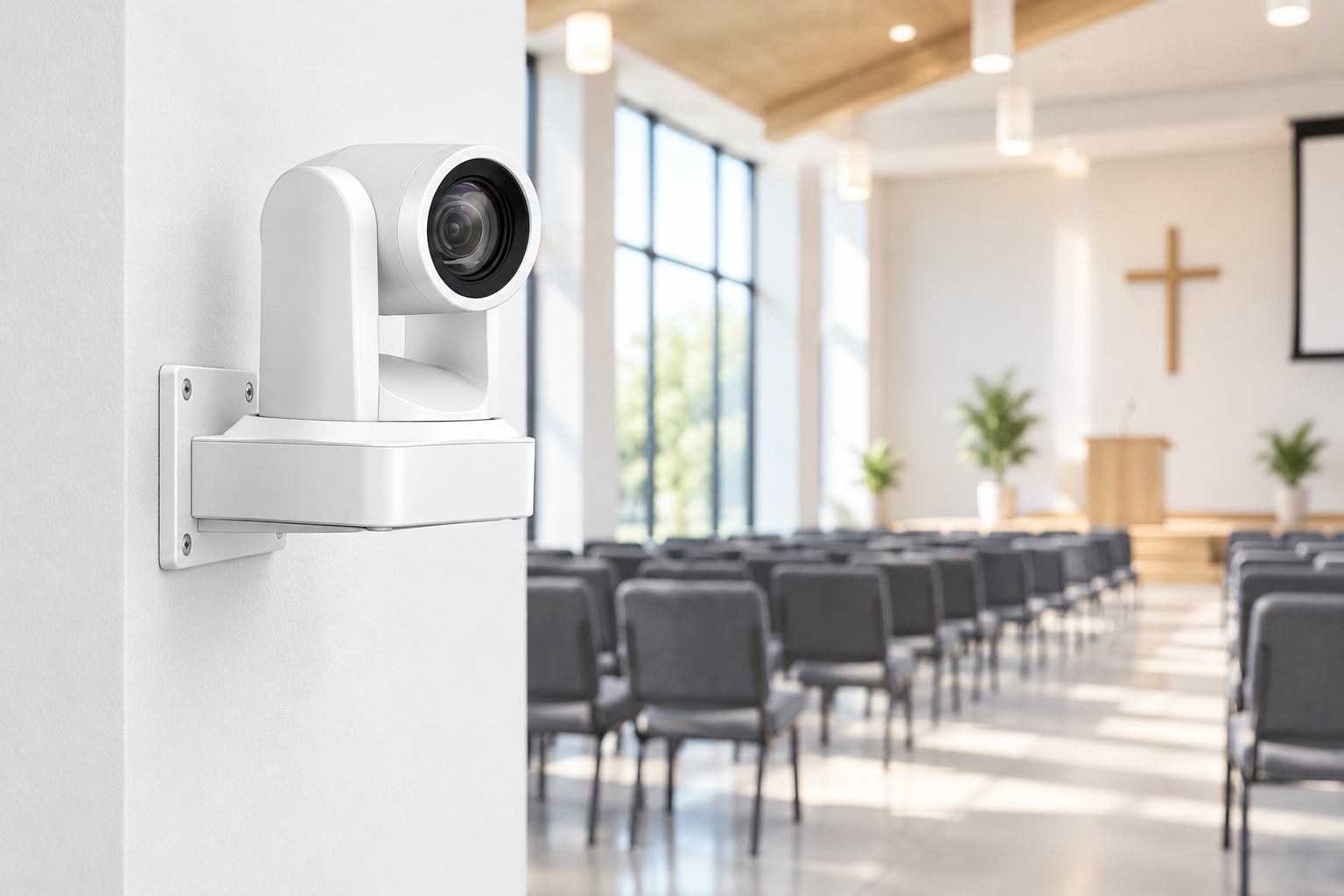
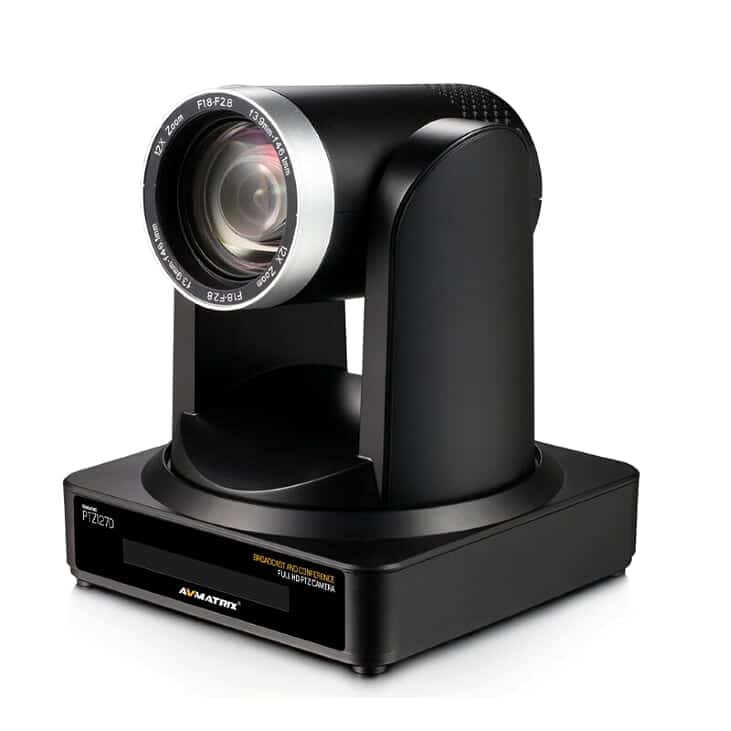
If you have no camera operators, consider PTZ (pan-tilt-zoom) cameras. One person can recall saved positions from the switcher or a controller. A PTZ camera that supports PoE (power over Ethernet) also cuts down on power cables.
Step 2: Use cameras with a clean video output
The switcher needs a “clean” feed. Clean means no menus, focus boxes, battery icons or recording dots on the image. If your camera shows them on the HDMI output, viewers will see them too. Panasonic notes that a camera without clean HDMI can still stream, but its interface will appear over the video.
Check these settings on every camera before the event:
- Clean output: turn off the on-screen info display for HDMI or SDI output.
- Auto power off: set it to disabled. Canon and Sony both tell users to do this for live streaming. A camera that goes to sleep after its timeout will kill your angle mid-show.
- Heat: Sony warns that continuous high-quality streaming can raise a camera’s internal temperature until it shuts off. Keep cameras out of direct sun and look up the heat limits for your model.
- Frame rate: set every camera to the same frame rate and resolution, for example 1080p25 or 1080p50 in Europe.
- Power: use dummy batteries or mains power. Internal batteries will not last a three-hour event.
Cameras also have clip limits for internal recording. Canon, for example, lists a maximum of 29 minutes 59 seconds per clip. Do not rely on a camera card as your backup. Record the program on the switcher instead.
Genlock, a sync signal that locks all cameras to the same timing, is useful on large broadcast shoots. Most small streams do not need it, because many switchers re-sync incoming sources for you. If you do use genlock, RED says all cameras need the same firmware version, time base and recording frame rate.
Step 3: Choose HDMI or SDI by cable length and risk
Both carry clean, uncompressed video with very low delay. The difference is distance and connector.
| HDMI | SDI | |
|---|---|---|
| Typical cameras | Mirrorless, DSLR, camcorders, most PTZ | Broadcast cameras, many PTZ, cinema cameras |
| Practical run | About 15–20 ft (roughly 5–6 m) for passive 4K60 | Belden 1855A: up to 92 m at 3G-SDI, 63 m at 6G-SDI |
| Connector | No lock, easy to pull out | Locking BNC |
| Best for | Short runs, desk and studio | Stages, halls, long runs |
The HDMI standard does not set a maximum length. The limit comes from bandwidth: the faster the signal, the shorter the passive copper cable can be, according to Key Digital. For SDI, the figures above come from cable supplier Belram’s listing for Belden 1855A. Real runs depend on cable quality and connectors, so test long runs before the show.
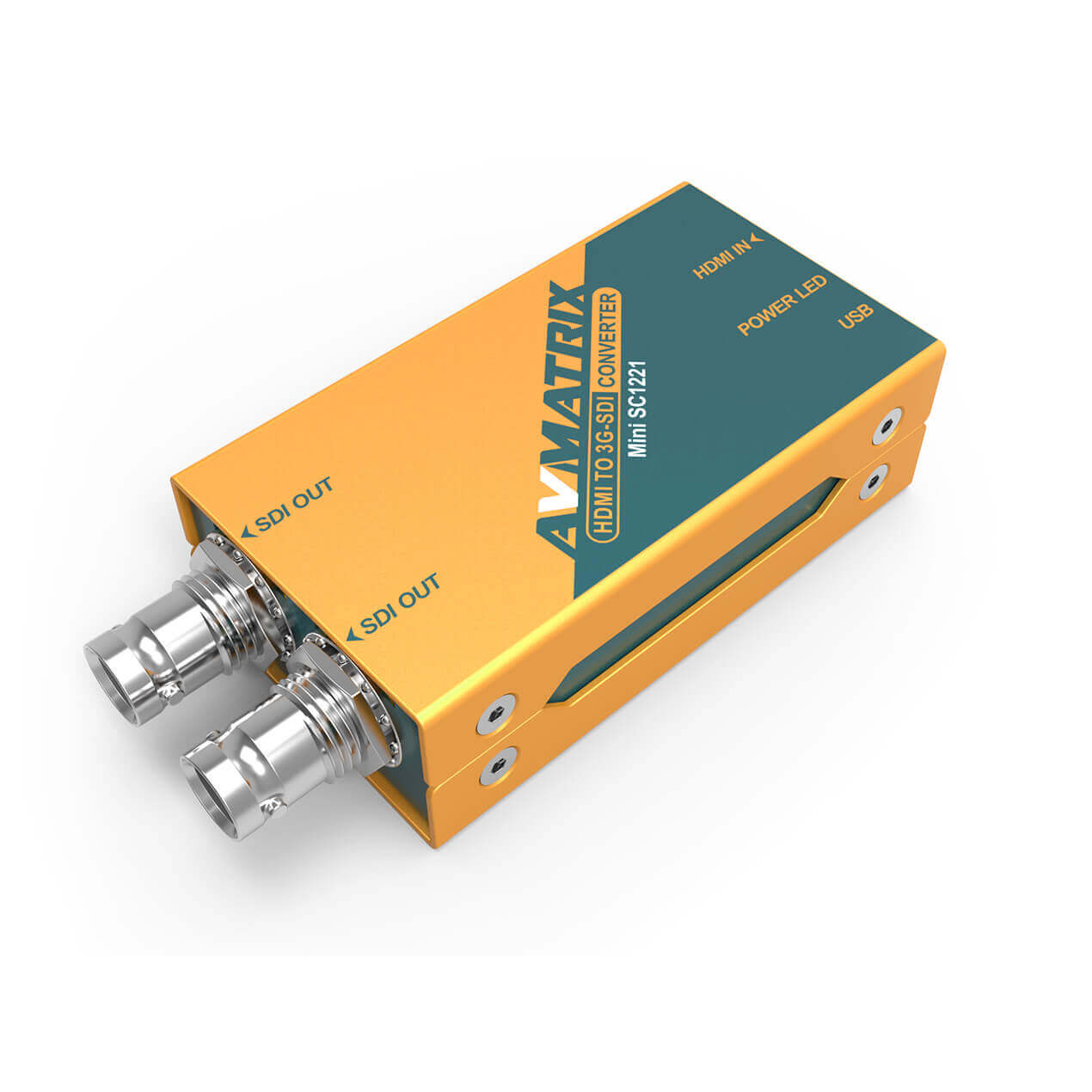
Here is a simple rule. If the camera sits within a few metres of the switcher, use a good HDMI cable. If it sits at the back of a hall, use SDI. You can also convert: a small HDMI-to-SDI converter at the camera lets a mirrorless camera travel over coax and lock in with a BNC connector.
For HDMI runs and cable choice, see our guide on choosing HDMI cables for video rigs. Browse our HDMI cables and coax cables when you know your lengths. If you cannot run cables at all, read how to choose a wireless video transmission system.
Step 4: Pick the switcher that fits your inputs
The switcher is the heart of the setup. It takes all camera feeds, lets you cut or fade between them, adds titles and graphics, and sends one program feed out. You will find video mixers in all sizes.
Count your inputs, then add two. You need one input per camera, plus one for a laptop with slides or graphics. Leave a spare for the camera you will add later.
Two options cover most small productions:
- HDMI switcher with built-in streaming. Blackmagic’s ATEM Mini range has 4 or 8 HDMI inputs depending on the model, and all inputs are standards converted, so cameras with different video settings still work. All models have a USB output that works like a webcam. The ATEM Mini Extreme ISO records all 8 inputs plus the program, nine streams in total, so you can re-edit the show later.
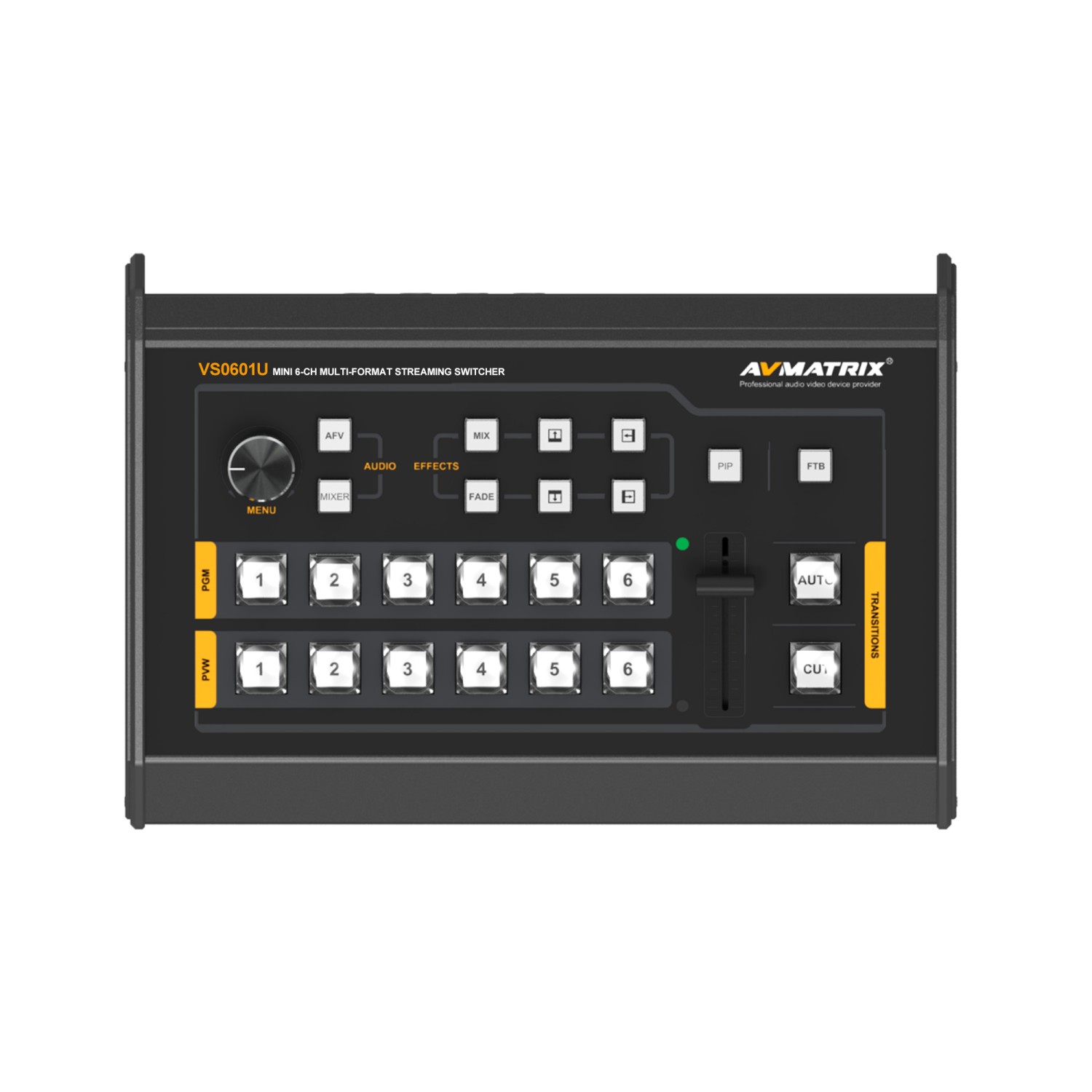
- Mixed SDI/HDMI switcher. The AVMATRIX VS0601U has 4 SDI and 2 HDMI inputs and USB capture for streaming. It suits a hall with a couple of long SDI runs plus a laptop.
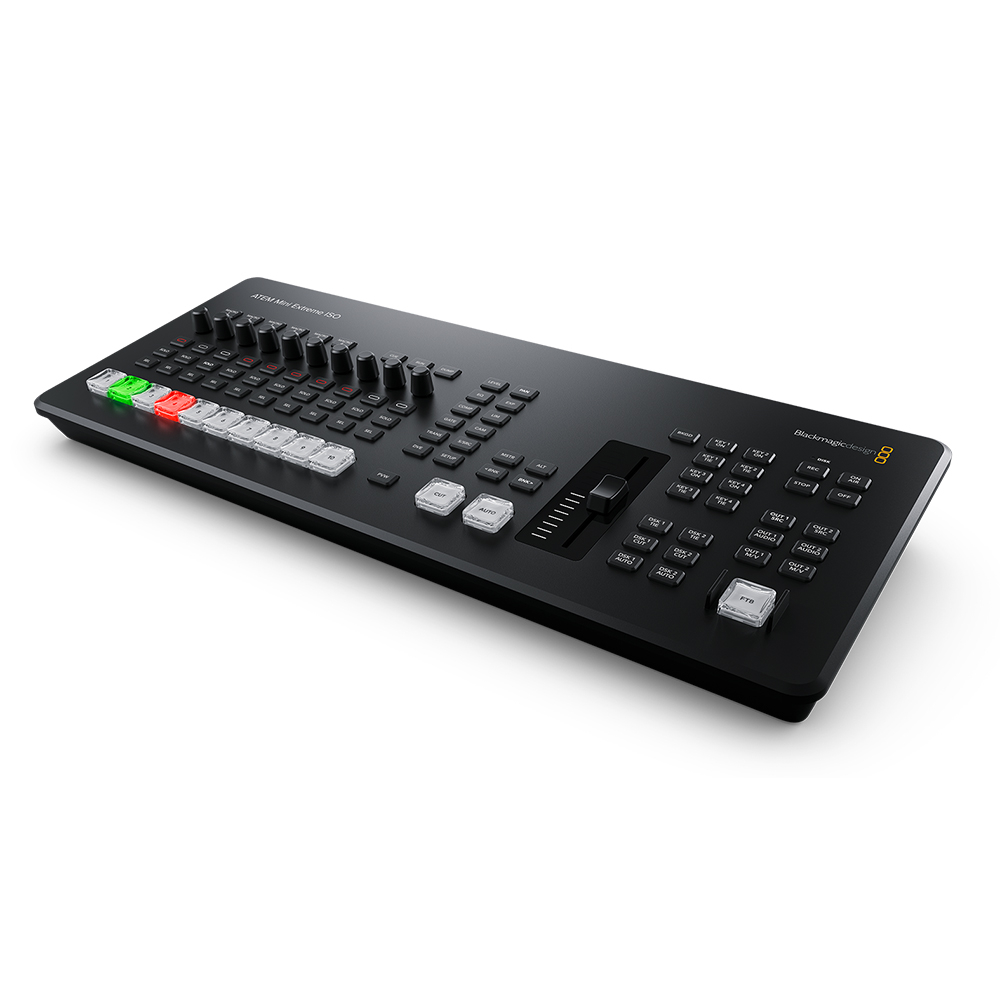
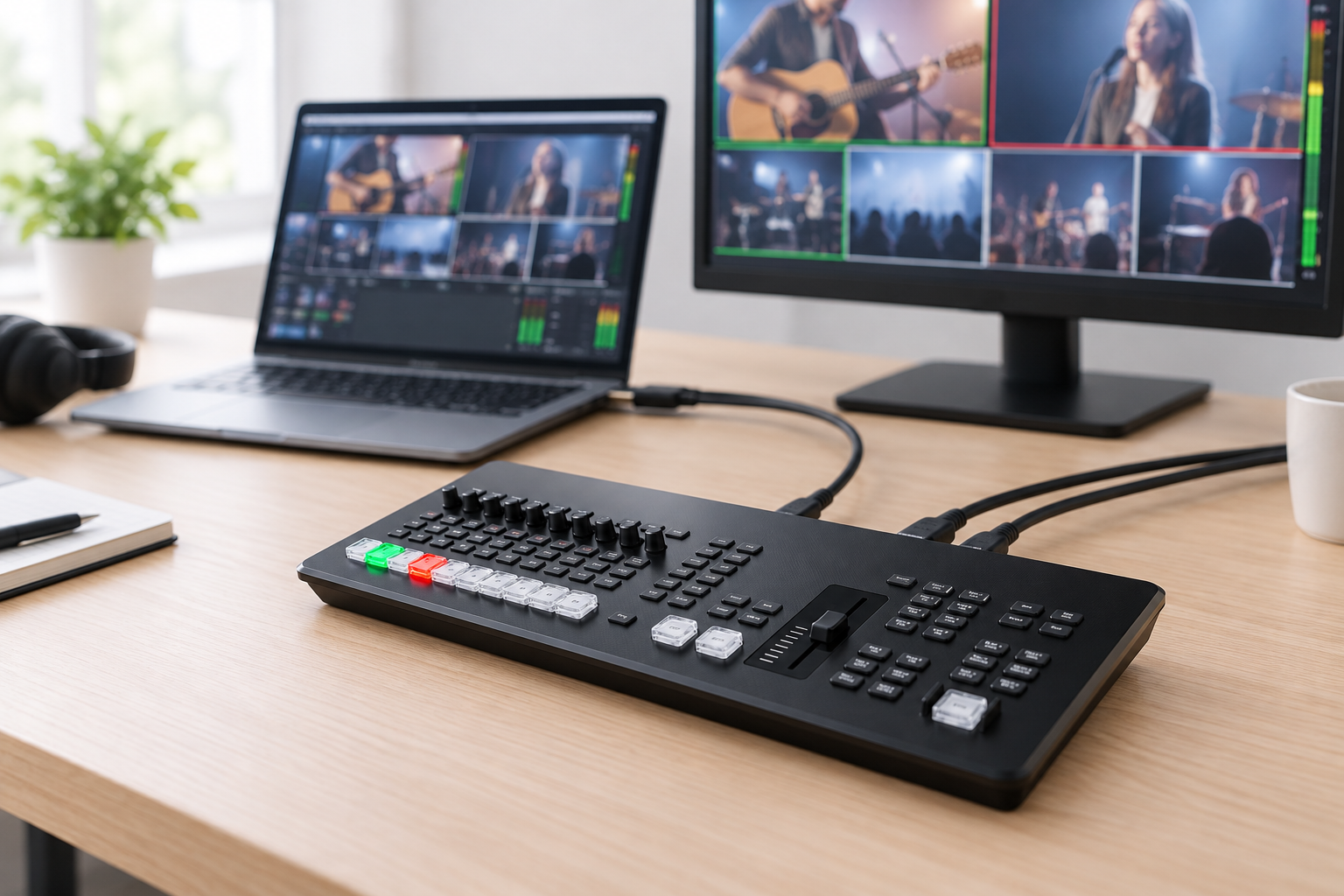
Use the multiview output. It shows every input, the preview and the program on one monitor. Without it, you are switching blind.
If your switcher has no streaming engine, it sends the program over USB or HDMI to a computer. Then you need a capture device or a USB output and encoding software such as OBS. Our capture card buyer’s guide explains which one fits your cameras.
Step 5: Keep audio simple and in sync
Viewers forgive a soft image. They do not forgive bad sound. Send one mixed audio signal into the switcher, not the sound from each camera.
Put your microphones into a small mixer or straight into the switcher’s audio inputs. Mute the camera mics at the switcher. Otherwise you get echo and a change in room sound on every cut. Our guide to wireless microphone frequencies and interference helps if you use wireless mics in a busy RF space.
Then check lip-sync. Every box in the video chain adds a small delay. Audio usually arrives early, so it needs to wait for the picture. At 30 fps, one frame is about 33 ms. That is a handy unit when you measure the gap.
Do this test during setup:
- Record a short clip of someone clapping in front of the camera.
- Play it back and watch the clap against the sound.
- If you hear the clap before the hands meet, add audio delay in small steps (for example 50 ms) until it lines up.
Many switchers and mixers have an audio delay setting. Some, such as the Roland VC-1-DL converter, can delay audio and video separately by up to 4.5 frames. If voices and lips drift further apart over time, the cause is different. That is a clock mismatch between your audio and video devices.
Step 6: Check your upload speed and encoder settings
Your upload speed, not your download speed, decides if the stream holds. Use a wired Ethernet cable. Twitch recommends wired over Wi-Fi when possible.
Pick the bitrate from the platform’s guidance:
- YouTube: 12 Mbps with H.264 for 1080p at 60 fps, according to YouTube’s encoder settings page.
- Twitch: 6,000 kbps for 1080p60 with CBR (constant bitrate).
Then add headroom. Twitch says your upload speed should be the stream bitrate plus 30%. Twitch’s FAQ gives the example of 6 Mbps needing at least 8 Mbps upload.
A worked example: you stream 1080p60 to YouTube at 12 Mbps. Plus 30% is about 15.6 Mbps. Run a speed test at the venue, at the same time of day as your event. If the result is 10 Mbps, lower the bitrate or the frame rate. Do not hope it works.
Also remember that each extra destination, such as a second platform, multiplies the upload you need.
Run a full test before every show
Most failures are not the gear. They are things nobody checked. Run through this list 60 minutes before going live:
- Every camera shows in multiview with no overlays.
- Cables are taped or locked down and HDMI plugs are secured.
- Auto power off is disabled and every camera is on mains or fresh batteries.
- Audio is mixed, meters peak below clipping, and lip-sync is checked.
- You have a private test stream running for at least 15 minutes with no dropped frames.
- A backup exists: a recording on the switcher and a spare HDMI cable.
We often see crews build everything correctly and then lose a camera because a loose HDMI plug moved during a cut. A few minutes of taping and strain relief prevents it.
Key Takeaways
- Start with 2–3 camera angles and a switcher with spare inputs.
- Set each camera to clean output, no auto power off, and the same frame rate.
- Use HDMI for short runs and SDI for long ones. A converter lets you mix both.
- Send one mixed audio feed and correct lip-sync with a small audio delay.
- Plan for upload speed of bitrate plus 30%, over wired Ethernet.
Not sure which switcher or cables fit your venue? Tell our team your camera count and cable distances. We will help you pick a working setup from our video mixers range.