How to Set Up a PTZ Camera for Live Streaming: 7 Steps
A PTZ camera pans, tilts and zooms by remote control. One camera can cover a stage, a classroom or a studio, and nobody has to stand behind it. The setup is simple once you make the right choices in the right order.
Here is the short version:
- Pick how the video will reach your computer (USB, HDMI/SDI or network).
- Mount the camera securely, high enough to see faces.
- Power it and run the cables.
- Give it a network address.
- Add it to OBS or vMix.
- Set white balance, shutter and focus, then save presets.
- Match your stream settings to your upload speed.
Step 1: Choose how the video leaves the camera
This choice decides what else you need to buy. Most PTZ cameras offer several outputs, but not all models offer all of them. Check the spec sheet of your exact model first.
| Output | What you need on the computer | Best for |
|---|---|---|
| USB (UVC) | Nothing. It shows up like a webcam. | One camera, short cable, fastest start |
| HDMI | A capture card or HDMI switcher | Short runs, one or two cameras |
| SDI | A capture card with SDI input | Long cable runs, fixed installs |
| NDI | Gigabit network, NDI software | Several cameras, one cable per camera |
| SRT / RTSP / RTMP | Software that accepts an IP stream | Direct streaming, remote locations |
UVC means “USB video class”. It lets your computer treat the camera as a plain webcam. OBS, for example, can add a USB camera directly as a Video Capture Device. HDMI and SDI outputs normally need capture hardware first. Our capture card guide shows how to pick one.
NDI sends video, audio and control data over your normal network. Video-mixing software vMix can receive NDI sources and treats them like HDMI or SDI cameras. For a deeper comparison, read our NDI vs SDI guide.
| Our advice: if you plan more than one camera, choose a model with PoE and NDI | HX from the start. One network cable then carries power, video and control. For a single camera on a desk, USB is fine. |
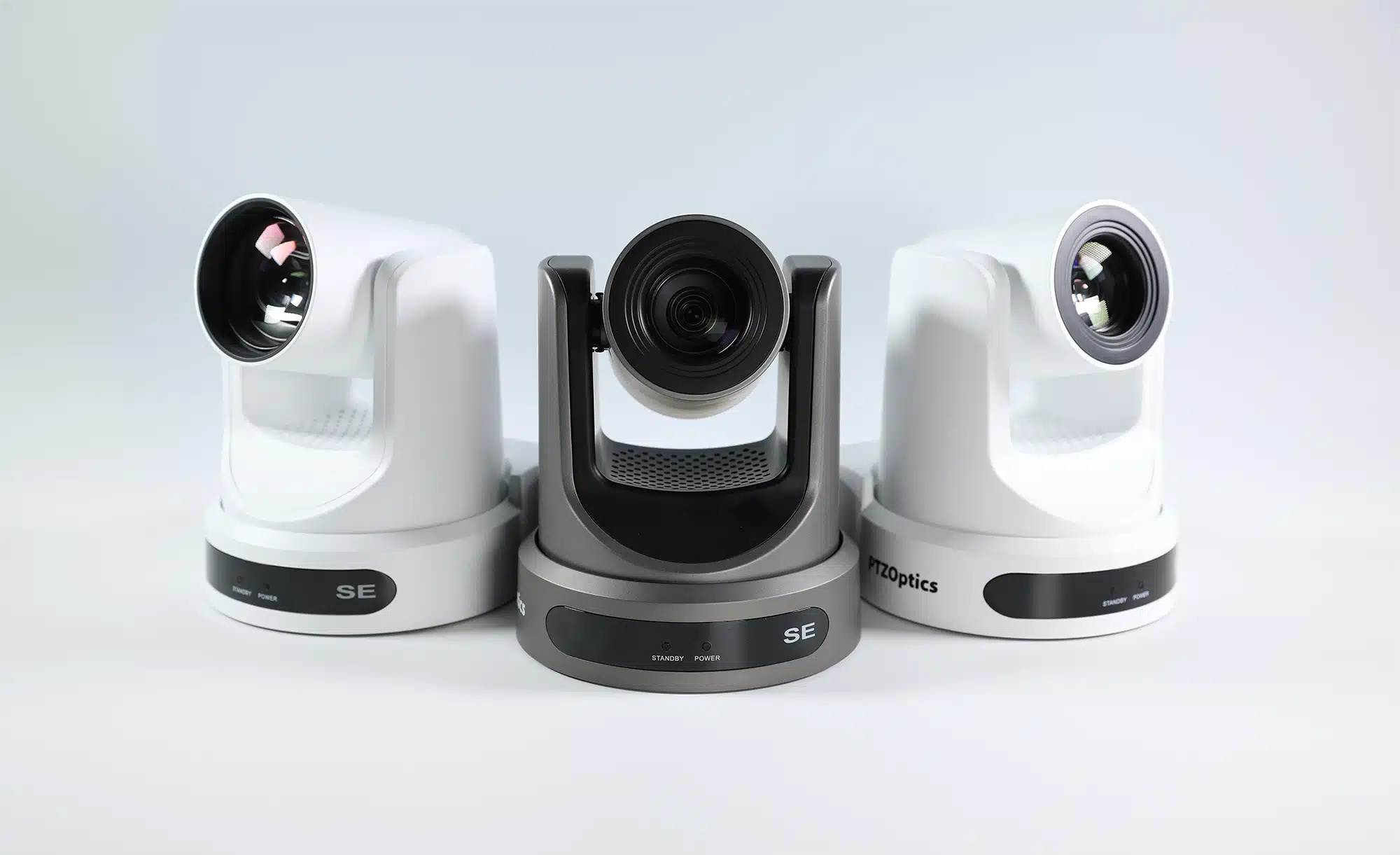
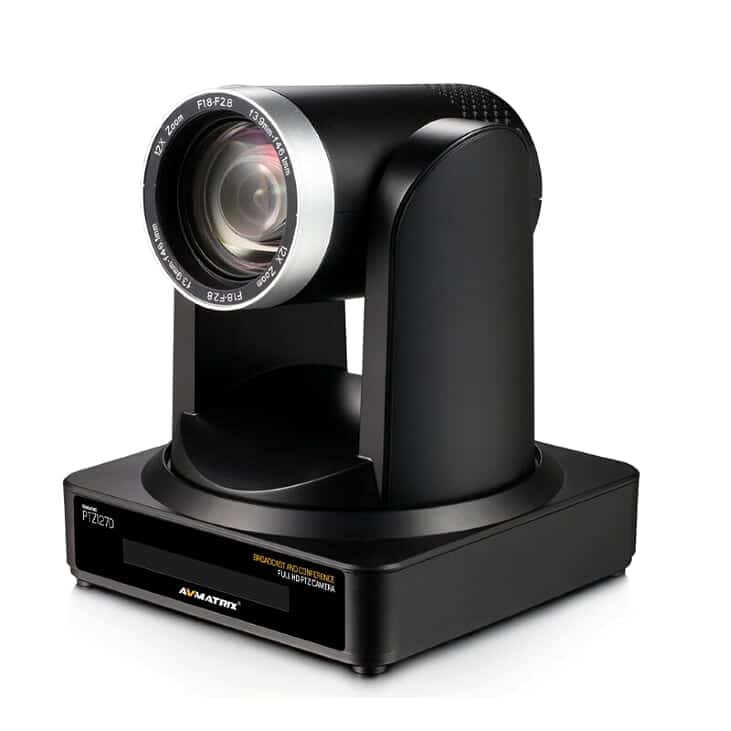
| Two examples from our range show the difference. The PTZOptics Move SE gives you USB 2.0, HDMI 2.0, 3G-SDI, SRT, RTSP and RTMP, with NDI | HX as an upgrade. HDMI and SDI are not active at the same time. The AVMATRIX PTZ1270 offers HDMI, 3G-SDI, USB and LAN, supports PoE, and has optional NDI | HX. |
-
 PTZ cameras
PTZOptics Move SE Full-HD auto-tracking camera 12X, 20X, 30X
€ 1 190.00 – € 1 485.00€ 1 475.60 – € 1 841.40 (incl. VAT) -
 -20%PTZ cameras
AVMATRIX PTZ1270 HDMI/SDI PTZ camera with POE & NDI (black)
Original price was: € 1 299.00.€ 1 039.00Current price is: € 1 039.00.€ 1 288.36 (incl. VAT)IN STOCK
Not sure you need a PTZ camera at all? See our PTZ camera vs webcam comparison. To compare sensors and zoom, read our guide to PTZ cameras for live production.
Step 2: Mount and place the camera
Place the camera before you run any cable. Moving it later means redoing the cable work.
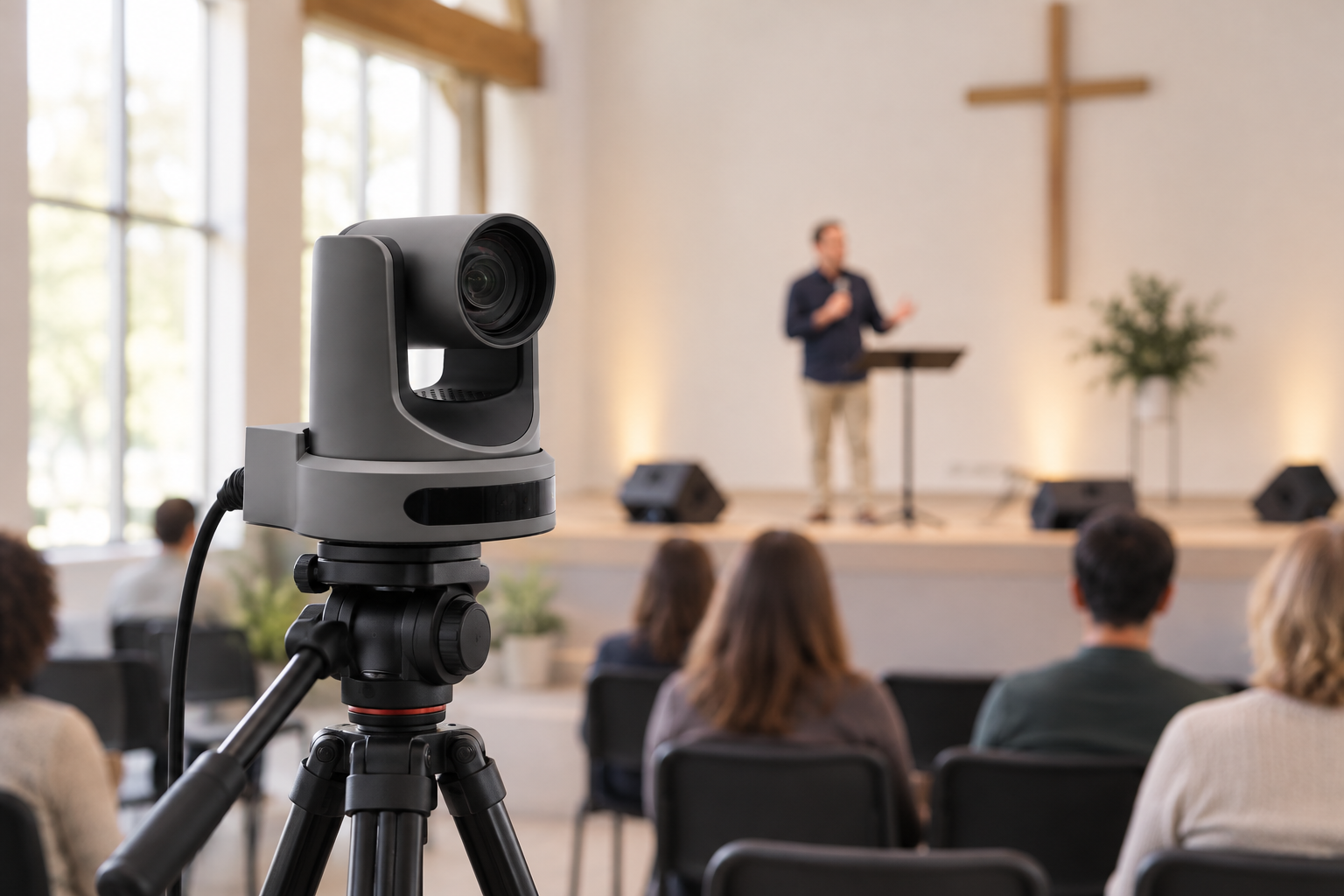
Height matters more than most people expect. A live-production guide from B&H warns that a PTZ mounted high and close to people can show mostly the tops of their heads. B&H recommends placing it high but farther back, so the lens sees faces. Our rule of thumb is simple. Aim for roughly eye level or a little above, and use zoom to fill the frame instead of moving the camera closer.
Mounting choices:
- Tripod or desk: Easy to move. Good for events and rented spaces.
- Wall or ceiling bracket: Keeps the floor clear and the camera out of reach. Our AVMATRIX wall mount and ceiling mount are made for the PTZ1270 and PTZ2870.
Secure the mount properly. Dacast warns that a loose mount lets the camera wobble and ruins shots. When you work at height, B&H advises using safety cables and having a second person help.

Step 3: Power the camera and run the cables
Most pro PTZ cameras accept PoE (Power over Ethernet) or a 12 V power adapter. PoE is easier. One cable does everything, and you only need a PoE switch.
Not every camera needs the same PoE class. PTZOptics explains that some of its models work on standard PoE (802.3af, up to 15.4 W), while the Move 4K and Link 4K models need 802.3at PoE+. Read the power line in the datasheet and match your switch to it.
Cable distance is the next limit:
- Ethernet (Cat5e or Cat6): up to 100 m for the whole channel, including patch cords.
- HDMI 2.0: 5 to 15 m depending on the cable, up to 30 m with a repeater. See our HDMI cable guide for details.
- SDI: no single limit. The distance depends on the SDI speed and the exact coax. Canare, for example, says 4K over its L-5.5CUHD cable can reach 100 m or longer, depending on the receiving equipment.
If your camera sits more than 15 m from the computer, we suggest SDI or network over HDMI. The Arvo Pärt Center is a good example from our own projects. It runs four AVMATRIX PTZ1270 cameras in its concert hall. An AVMATRIX PKC2000 controller steers them over the local IP network, and the video travels over Belden SDI cable to the control room. The hall uses this for concert recordings and webcasts.
Step 4: Put the camera on the network
Skip this step if you use USB. For NDI, RTSP, SRT or IP control, the network is your signal path, so build it with care.
Switch. NDI’s own guidance asks for Gigabit ports, full duplex, and enough backplane capacity. Do not put NDI cameras on a cheap 100 Mbit switch.
Bandwidth. NDI publishes these approximate numbers for 1080p60 streams, per NDI:
| NDI format | Approx. bandwidth at 1080p60 |
|---|---|
| High Bandwidth | up to 150 Mbps |
| HX3 (H.264) | about 62 Mbps |
| HX2 (H.264) | about 16 Mbps |
A worked example: three cameras on HX3 with H.264 use about 186 Mbps (3 × 62). Three High Bandwidth cameras use up to 450 Mbps. Both fit on a Gigabit link, but the second leaves less room for other traffic. NDI traffic is not constant, so plan some headroom.
Addresses. Roland tells users that each device needs its own IP address. Roland recommends static addresses and a dedicated switch. A static IP, or a reservation in your router, keeps each camera at the same address after a reboot. Write the address on a label on each camera.
Step 5: Bring the camera into OBS or vMix
With vMix, NDI cameras appear as inputs. RTSP and SRT streams can also be added as inputs through the Stream input. For RTSP, enter the camera’s stream URL, which looks like `rtsp://address/stream1`. The exact path is in your camera’s manual.
With OBS Studio, the method depends on the output:
- USB or capture card: add a Video Capture Device source.
- NDI: OBS has no built-in NDI input. NDI’s documentation says to install the third-party DistroAV plugin and the NDI Runtime. Then add an NDI Source and pick your camera. Check the plugin’s current OBS version requirement before you install.
Add and test the video source first. Control comes second. The separate PTZ Controls plugin adds a dock to OBS. It supports VISCA, VISCA over UDP and VISCA over TCP. VISCA is the common protocol for PTZ cameras. The port differs by brand, so read your camera’s manual instead of guessing.
Step 6: Set the image, then save presets
Fix your lighting first. PTZOptics notes that flat, even lighting is the easiest to work with, and that image settings will need rework if you change the lights afterwards. Our live streaming lighting guide covers the basics.
Then zoom out to a wide view, point the camera at the main area and adjust:
- White balance: Auto is the default and works for many rooms. For mixed light, use One Push. Hold a white sheet in the light your subject stands in, and let the camera lock to it.
- Flicker: In 50 Hz regions such as Europe, Sony recommends a shutter speed of 1/50 or 1/100 s. Many PTZ cameras also have an anti-flicker setting. Set it to 50 Hz if you see bands in the picture.
- Backlight compensation: Turn it on if a bright window is behind your speaker and the face is dark.
- Focus: Autofocus works in most rooms. Use manual focus to lock a shot where autofocus hunts, for example on a speaker at a lectern.
Now save presets. A preset stores the pan, tilt and zoom position. On PTZOptics cameras it also stores the image settings active at that moment. There is a catch. If auto exposure, auto white balance or autofocus is on, the camera may keep adjusting after you recall the preset. Switch off the settings you want to freeze before you save.
A good starter set: a wide shot, a medium shot of the speaker, and a close-up of the lectern or desk.
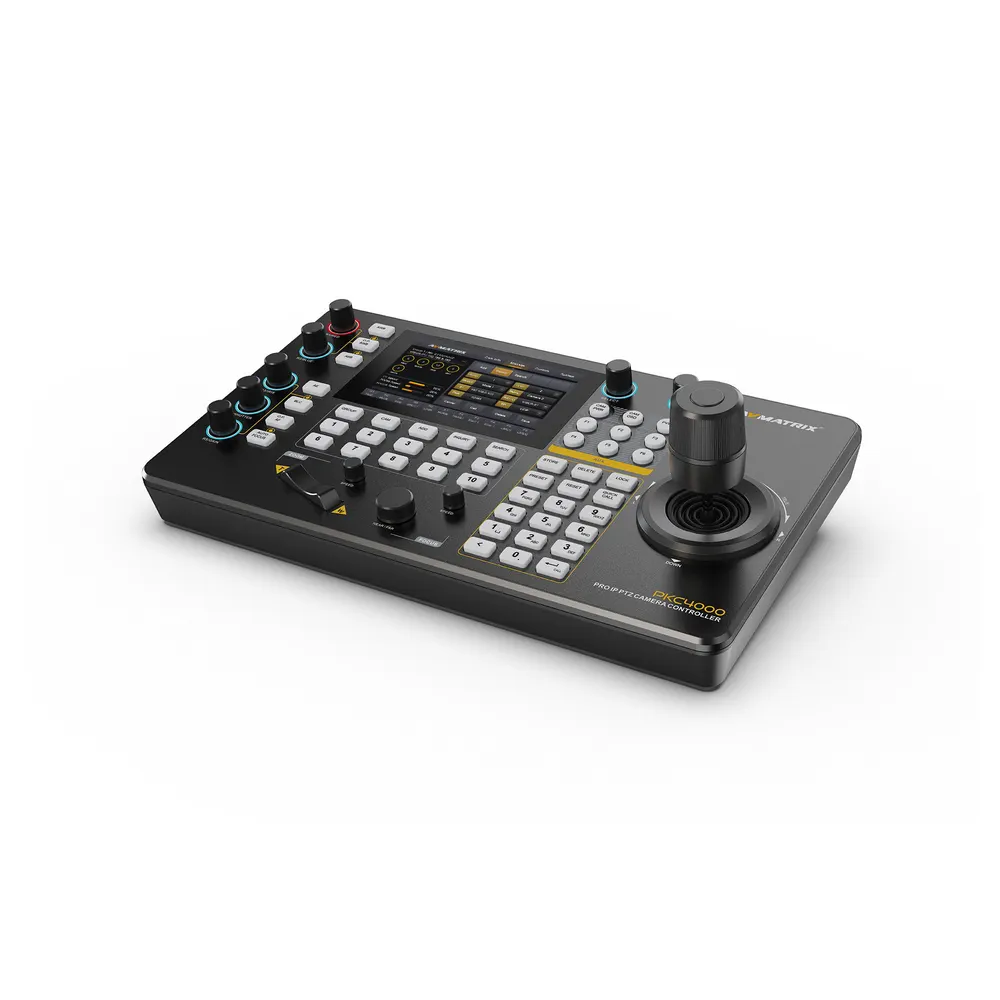
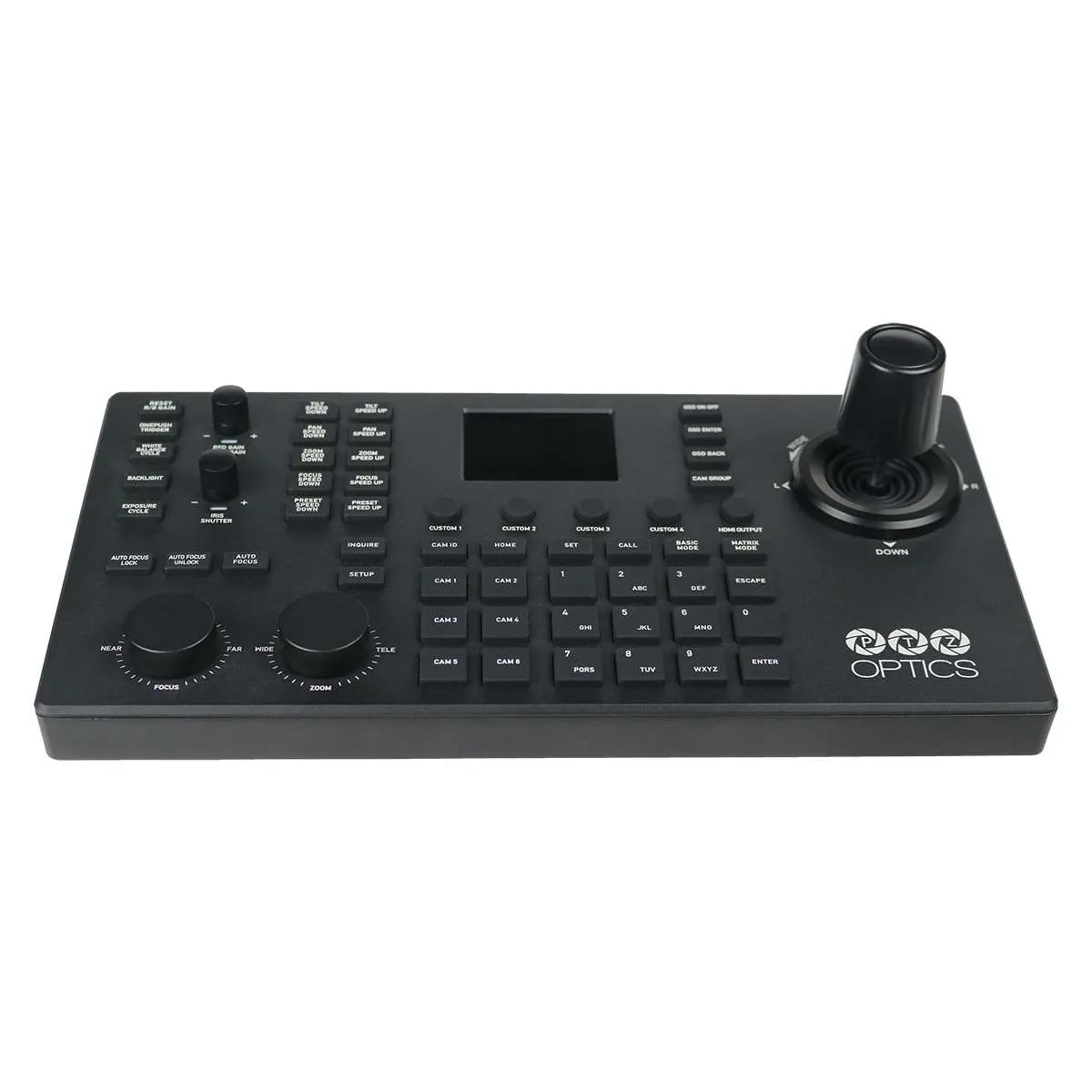
For live events, a hardware joystick is easier than clicking a mouse. A controller also lets you recall presets without opening software. The PTZOptics SuperJoy and the AVMATRIX PKC3000 and PKC4000 are options in our range. Check that the controller supports your camera’s protocol first.
Step 7: Match your stream settings to your upload speed
Official numbers for 1080p60:
- YouTube: 17 Mbps recommended for H.264, or 12 Mbps for H.265 and AV1. YouTube’s encoder settings list RTMP and RTMPS.
- Twitch: 6,000 kbps with CBR and a 2-second keyframe interval.
Leave room above that. YouTube says to keep about 20% spare bandwidth. Twitch says upload speed should be the bitrate plus 30%. In numbers, a 17 Mbps YouTube stream needs about 20.4 Mbps of upload speed. A 6 Mbps Twitch stream needs about 7.8 Mbps. Run a speed test at the venue, at the time of day you will stream.
One more point. NDI and SRT are good for getting video from the camera into your mixing software. The finished program usually goes to YouTube or Twitch over RTMP. The cited YouTube and Twitch documents list RTMP, not SRT, so check your platform’s ingest options before you plan an SRT workflow.
Four mistakes to avoid
- Buying the camera before the switch. NDI needs Gigabit ports and, for some models, PoE+. Check both.
- Saving presets with auto settings on. The shot may look different when you recall it.
- Leaving IP addresses to chance. Fix them before show day.
If you would rather hand the project to someone, we also plan and install AV systems. Our team can help with camera choice, cabling and network layout.
Key Takeaways
- Choose the output first: USB for one simple camera, SDI or NDI for long runs and several cameras.
- Mount the camera high enough to see faces, but far enough back to avoid head-top shots.
- Use a Gigabit switch, match PoE to your camera model, and give every camera a fixed IP.
- Fix lighting first, then set white balance, a 1/50 or 1/100 s shutter for 50 Hz, and save presets with auto settings off.
- Plan your upload speed at bitrate plus 20 to 30%.
Ready to pick your camera? Browse our PTZ cameras and contact our team if you want advice on your setup.